

This chapter is about copies that Aionda forwards to an inbox at another provider. Messages stored in the Secure Mailbox are not affected: there is no second provider that could refuse them. To trace one specific message, start with Troubleshooting and Logging.
Why forwarded mail can be treated as suspicious
When an alias forwards a message to a real address, Aionda’s server passes someone else’s message on to your other provider. That provider checks the message with three mechanisms:
- SPF checks whether the sending server may send for the sender domain. For a forwarded copy the sending server is Aionda’s, not the original sender’s.
- DKIM is a signature over selected headers and content. Changes on the way can invalidate it.
- DMARC is the original domain’s instruction for messages whose SPF or DKIM result does not match the visible From domain: accept, quarantine (often the spam folder) or reject.
A strict DMARC policy of the original sender is therefore the most common reason why a forwarded copy lands in spam or is refused. How the reading pane presents these checks is described under sender checks.
Rewrite the “FROM” and “TO” header
Both settings are in the Web app under More → Email processor; a tick is saved as soon as you click it. They change forwarded copies only, never the copy in the Secure Mailbox. The full list of Email processor settings is in Rules and the email processor.
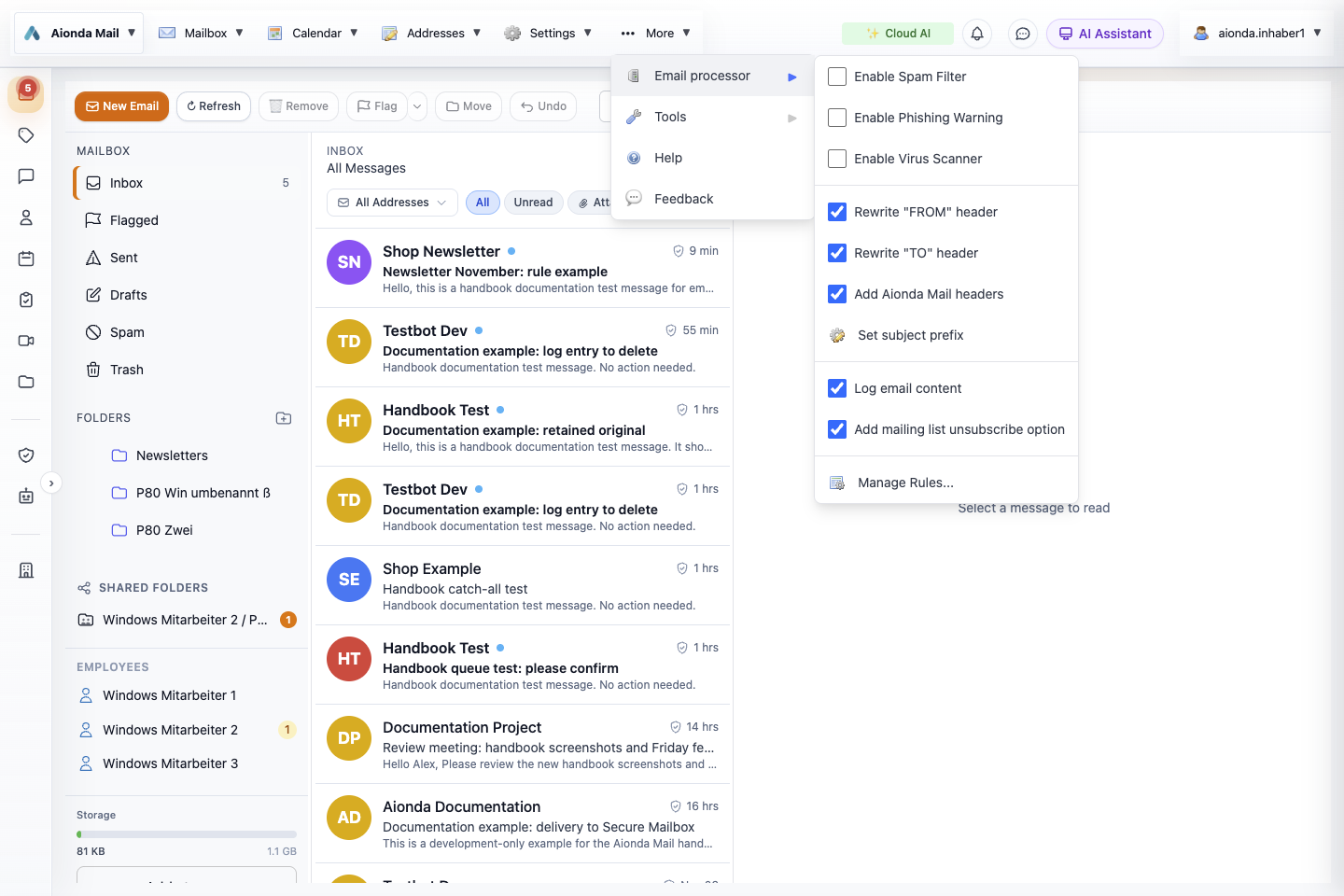
- More → Email processor.
- Rewrite "FROM" header and Rewrite "TO" header change forwarded copies.
- Log email content keeps the evidence for Logging.
Select the screenshot to open the full-size image.
| Setting | Effect on the forwarded copy | When it helps |
|---|---|---|
| Rewrite "FROM" header | The copy is sent with your receiving address as sender; the original sender appears in the display name and as reply address. The visible From domain is then your alias’s domain, so the original sender’s DMARC policy no longer applies to the copy. | Forwarded mail is refused or lands in spam at the destination. |
| Rewrite "TO" header | To (and Cc/Bcc entries with your address) show the destination address instead of the alias. | Strict spam filters at the destination expect their own address in To. |
S/MIME signatures: rewriting the From header breaks S/MIME signatures; the Logging event for this setting says so as well. Email programs compare a signature with the sender address, and after rewriting they no longer match. Leave the option off if you rely on signed messages and have no delivery problem.
Reply without revealing your real address
Switch on Reply-Masquerading for the alias in the address list: replies you send from your real inbox then go back through Aionda, and the original sender sees the alias instead of your real address. Under Settings → Sender Name... the window Default Sender Name offers Generate random name (anonymous) or Use fixed name:. The window notes that you can change the name per address, in the Sender name column. Reply-Masquerading changes headers; it is not encryption.
Delays, refusals and automatic retries
Select the receiving address, choose Logging, select the message and open Events. The text after the colon in an event is the destination server’s own response; read it before you change anything.
| Event in Logging | What happened | What to do |
|---|---|---|
| Email was temporarily not forwarded! … and Forwarding failed, queued for retry | The destination server refused the copy temporarily (a 4xx response). Aionda retries automatically, up to three times: after about 1, 5 and 30 minutes. Retry attempt started and Forwarding succeeded after retry record the attempts. | Wait. Do not request or resend the same message while retries are pending. |
| Forwarded to failover address after max attempts | All three retries failed; the copy went to your fail-over address. | Read the copy there and check why the default address keeps refusing. |
| Email not forwarded! Refused by destination server | A permanent refusal (a 5xx response), for example because the mailbox does not exist, is full, or the provider classified the copy as spam. If a fail-over address is set, Aionda tries it immediately. | Read the response. If it mentions spam, DMARC or the sender, switch on Rewrite "FROM" header. Otherwise check the destination address and its mailbox. |
| Invalid FROM header (not RFC compliant). Email rejected. | The incoming message’s own sender header does not follow the email standard; it was refused on receipt. | Nothing you can change: only the original sender can fix the header. |
| Quota of … forwards in the last 24 hours reached. Refused to accept email. | The number of copies forwarded to this destination in the last 24 hours reached the limit shown in the event; further messages were refused. | Reduce the volume, for example by storing busy aliases in the Secure Mailbox instead. |
| Waiting for confirmation (status) | The alias uses a whitelist mode with sender confirmation. | See Whitelist modes and the message queue. |
Forwarding limits and expiry of an alias are a separate topic: see Lifetime, forwarding limit and Plus. A message that is still retained in Logging can be sent again or stored in the Secure Mailbox, see Recover an email.
Set up a fail-over address
A fail-over address is a second real address that receives a copy only when delivery to your default address fails: immediately after a permanent refusal, and after the three retries of a temporary one. It does not receive a copy of every message.
- Choose Settings → Add Real Email and add an inbox at a different provider. Confirm it with the link sent to that inbox.
- Select it in the list of real addresses and choose Set as fail-over. The status then shows Fail-Over.
Step by step with screenshots: Real addresses: add, confirm, default and fail-over.
Your own domain
Aliases on your own domain only receive mail when its DNS records point to Aionda: an MX record MX @ 10 smtp.aionda.com and an SPF record TXT @ v=spf1 include:_spf.aionda.com -all. Without the MX record no message reaches Aionda at all; the SPF record improves the acceptance of forwarded copies. Settings → Manage Custom Domains shows the records, checks them and reports OK when MX and SPF are correct. Own domains require Aionda Mail Plus. The complete walkthrough is in Use your own domain.
Status messages by email
Under Settings → Status messages choose how often Aionda emails you a status report: Disabled, Every day, Every three days, Once a week, Once a month, Every six months or Once a year. Send now status sends one immediately; you can request one report per 24 hours this way.
The report goes to your default real address. It contains statistics (forwarded, blocked and failed forwards), failed redirects, your current forwarding addresses and recommendations, for example to set up a fail-over address after failed forwards.
Checklist: a forwarded email does not arrive
- Read the status and the Events of the message in Logging.
- Check the spam or junk folder and the filters at the destination provider. Acceptance by its server does not guarantee placement in its Inbox.
- If the destination refuses or junks forwarded copies, switch on Rewrite "FROM" header.
- Set up a fail-over address as a safety net.
- Check that the alias is enabled, has forwards left and has not expired.
Tip: if a destination provider keeps refusing forwarded copies, choose the Secure Mailbox as destination for that alias. Then no external server is involved, and your real address stays hidden.