

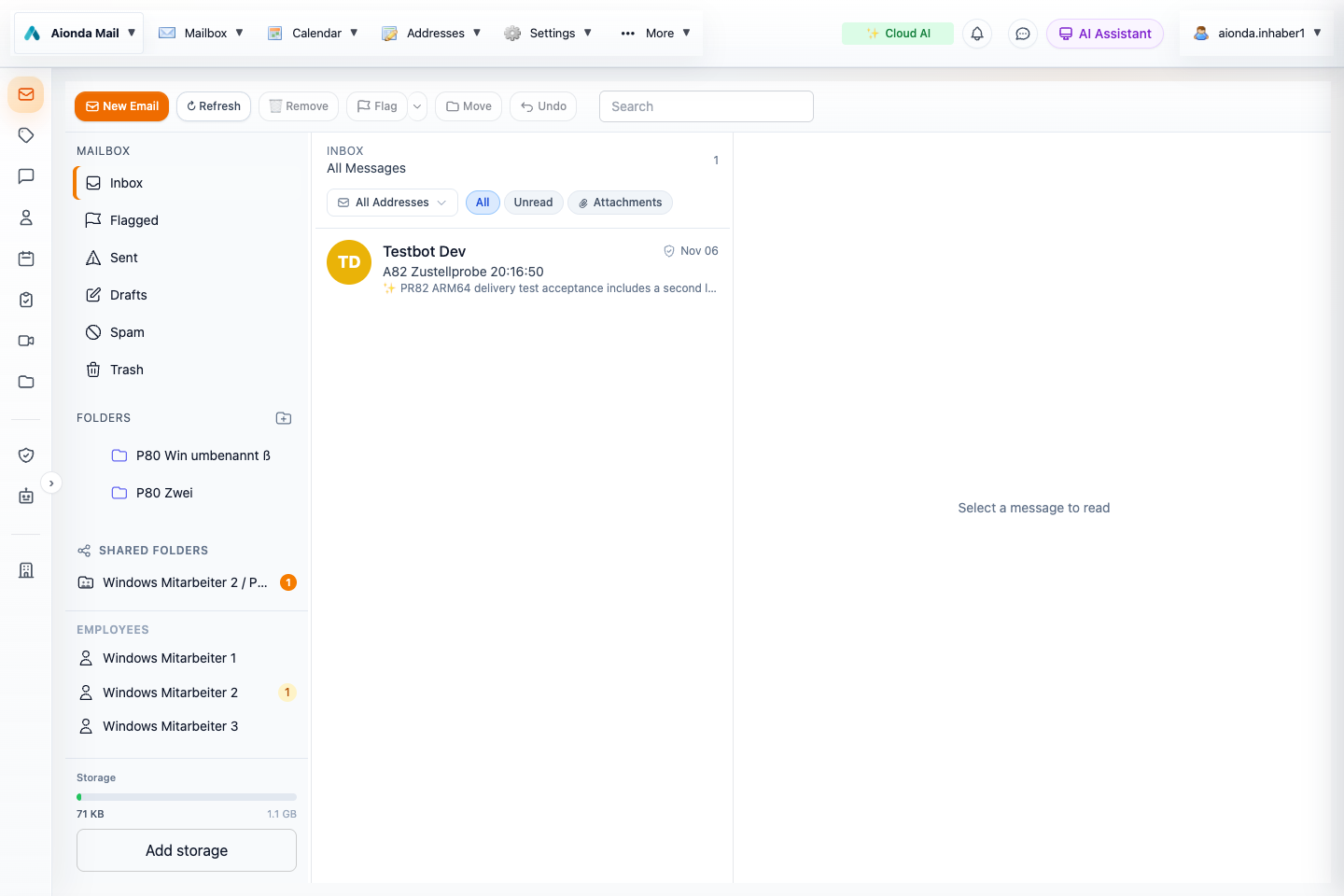
- Mailbox folders.
- Compose a message.
- Search and filter the message list.
Select the screenshot to open the full-size image.
New to the terminology? See the plain-English glossary. For another device, see native apps and browser access; for website forms, see the browser add-on guide.
Your first session
- Sign in with your account. Unlock the encrypted mailbox when prompted; signing in and unlocking stored content are separate steps.
- Open Mailbox, then Inbox. Select a message to read it. On a small screen, use Back to return to the list.
- Open Addresses to create or review the addresses at which you receive mail. Check whether each address delivers into your mailbox or forwards elsewhere.
- Open Contacts to find personal contacts and colleagues visible to you. Select the correct sending address before composing your first message.
- Visit Security and store your recovery information safely. Review Artificial Intelligence before enabling AI processing.
Find your way around
The application menu groups mailbox actions, addresses and settings. The sidebar opens Mailbox, Contacts, Calendar, Tasks, Drive and other workspaces. Enterprise appears for accounts with company functions. A collapsed sidebar still provides icons with labels on hover.
This English edition illustrates the Web client using a dedicated development test company. Sample names and records are test fixtures; some names and browser-native date fields retain their original language. Native apps use the same service but menus and the rollout of individual features differ.
What you need
Use a supported browser or the installed app and a working connection. Sending, storage and business capabilities depend on your account and company plan. The current account screen is authoritative for your quota and entitlement; this handbook does not promise fixed prices or storage allowances.