

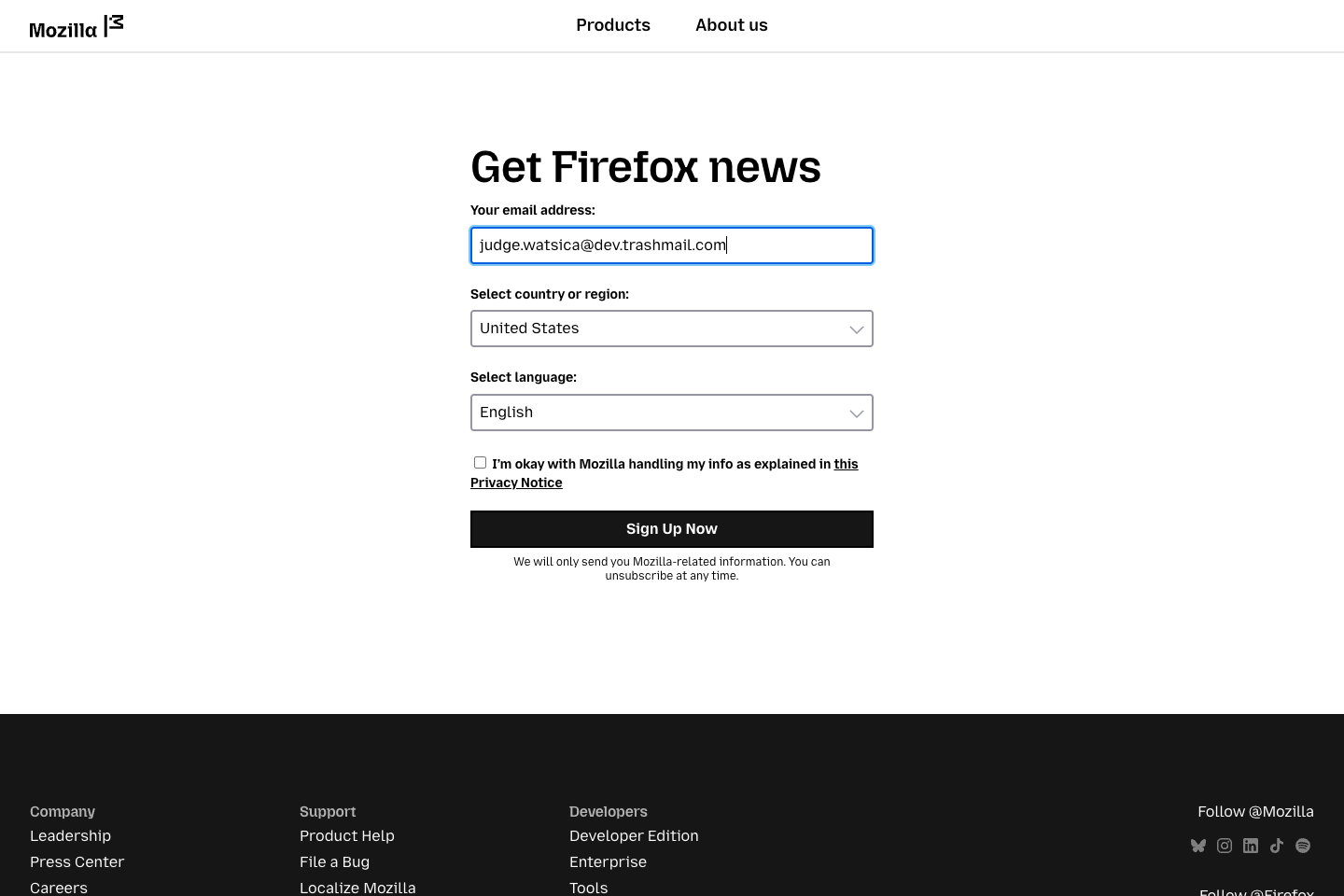
- Paste the complete disposable address into the website’s email field. This real Mozilla newsletter form is shown as an unsubmitted example; no subscription was made.
Select the screenshot to open the full-size image.
1. Start with the address you gave the website
You have copied an Aionda disposable email address (DEA) and pasted it into an online form: for example, a shop registration, newsletter subscription or password-reset request. Paste with Ctrl+V on Windows or Command+V on Mac. Check the complete address, including the domain after @, and remove accidental spaces.
In normal use, finish the website’s required fields and submit the form. Pasting an address alone does not request an email. Check whether the website confirms submission or shows an error. If it promises an email and that email does not appear, use the steps below.
About this example: the screenshot shows the Mozilla newsletter form without submitting it. The address is a Dev test address, not an address for readers to reuse. The later log screenshots show a separate test email delivered to that same address; they do not show a Mozilla delivery or a failure by Mozilla.
2. Check where the message should arrive
A disposable address can deliver to your Aionda Secure Mailbox, forward to an external email address, or use the configured combination. Check the intended mailbox, including Spam. If you use filters, clear them while searching. Allow for the sending website’s stated delay before requesting another copy.
3. Return to Aionda and click Addresses
Sign in to Aionda Mail. If you are on the homepage, choose Back to mailbox. In the Web app, click Addresses in the left navigation. If the navigation shows icons only, expand it with the small arrow at its edge; Addresses uses the tag-shaped icon.
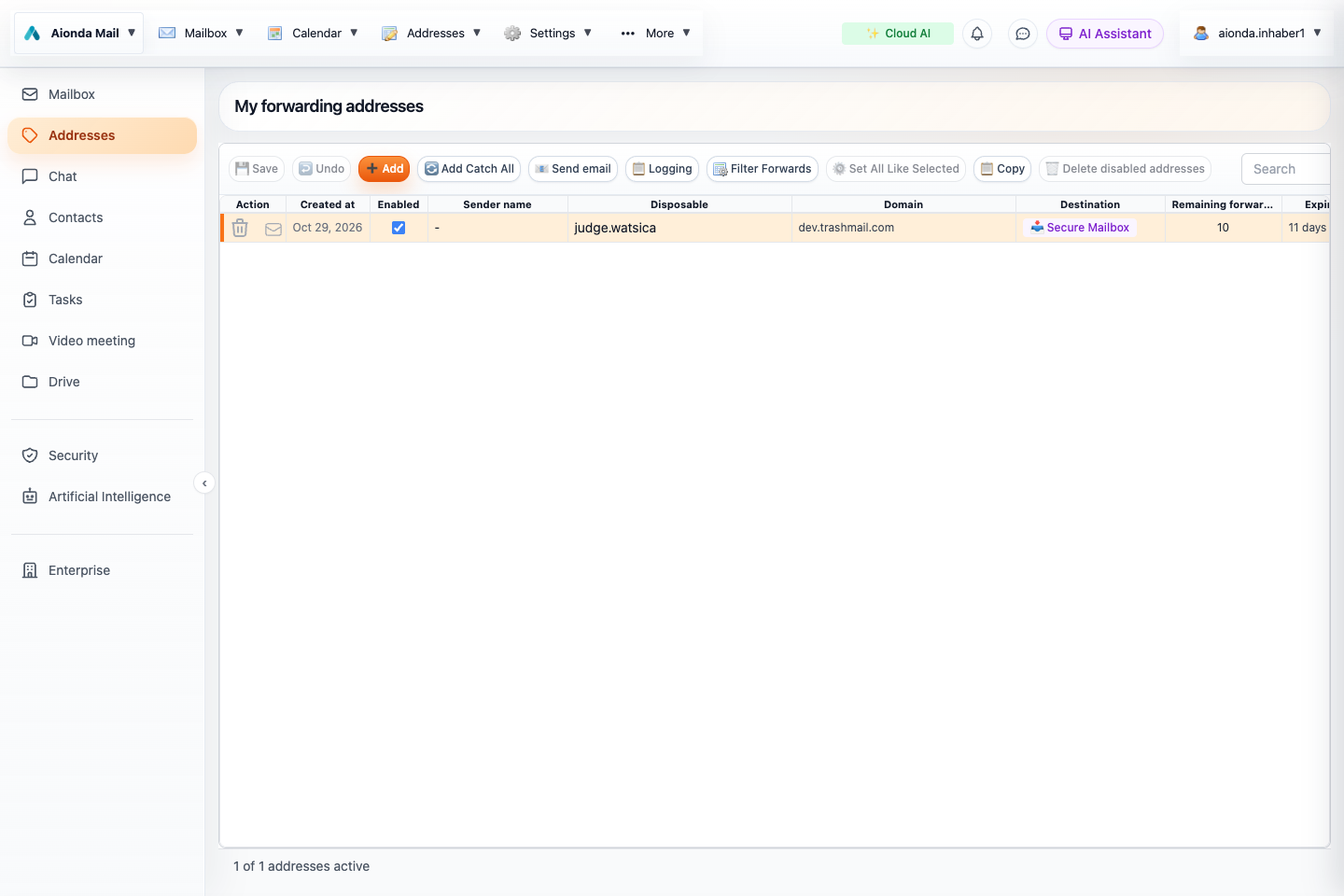
- Click Addresses in the left navigation. The address table opens on the right.
Select the screenshot to open the full-size image.
4. Select the exact address, then click Logging
Find the address you pasted into the form. The table splits it into Disposable (the name before @) and Domain (the part after @). In this example those are judge.watsica and dev.trashmail.com. You can use Search if your list is long.
- Click the row’s date or another non-editing area to select it. The selected row is highlighted.
- Check the Destination. This example delivers to Secure Mailbox. Also check that the address is enabled and has not expired or exhausted its forwarding allowance.
- Click Logging in the toolbar above the table. Select the address first if Logging is inactive.
The checkmark in Enabled controls whether the address works; it is not a row-selection checkbox. Do not toggle it just to select the address.
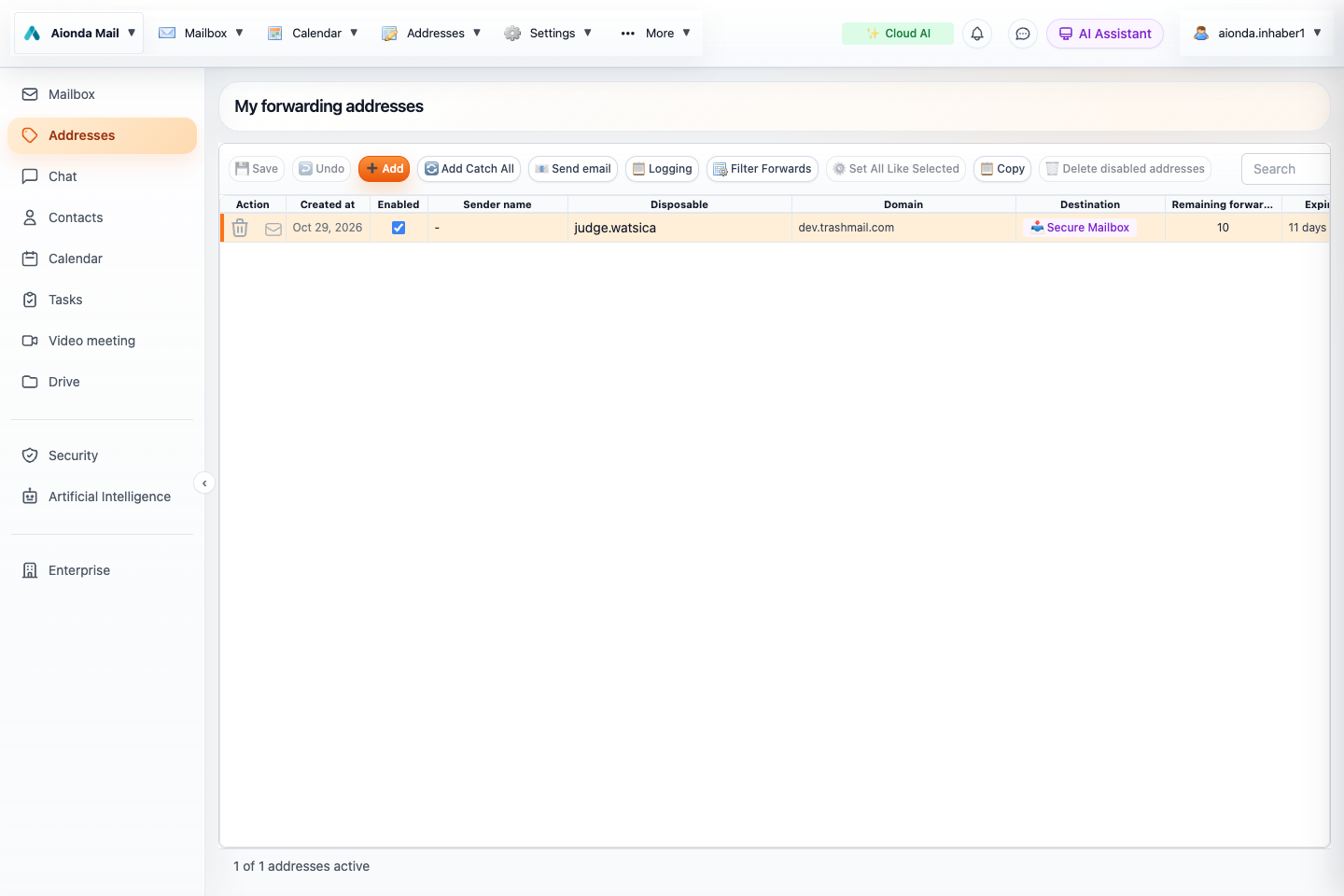
- Select the matching address row; check both Disposable and Domain.
- Check the destination.
- Click Logging above the table.
Select the screenshot to open the full-size image.
5. Find the expected email and open Events
The Logging window shows retained messages for the selected address. Match the Last Received time, From sender and Subject with what you are expecting. The sender may be the website’s mail service rather than the website’s own name.
- Select the relevant message row.
- Read its Status and Destination.
- Click Events at the top left of the Logging window.
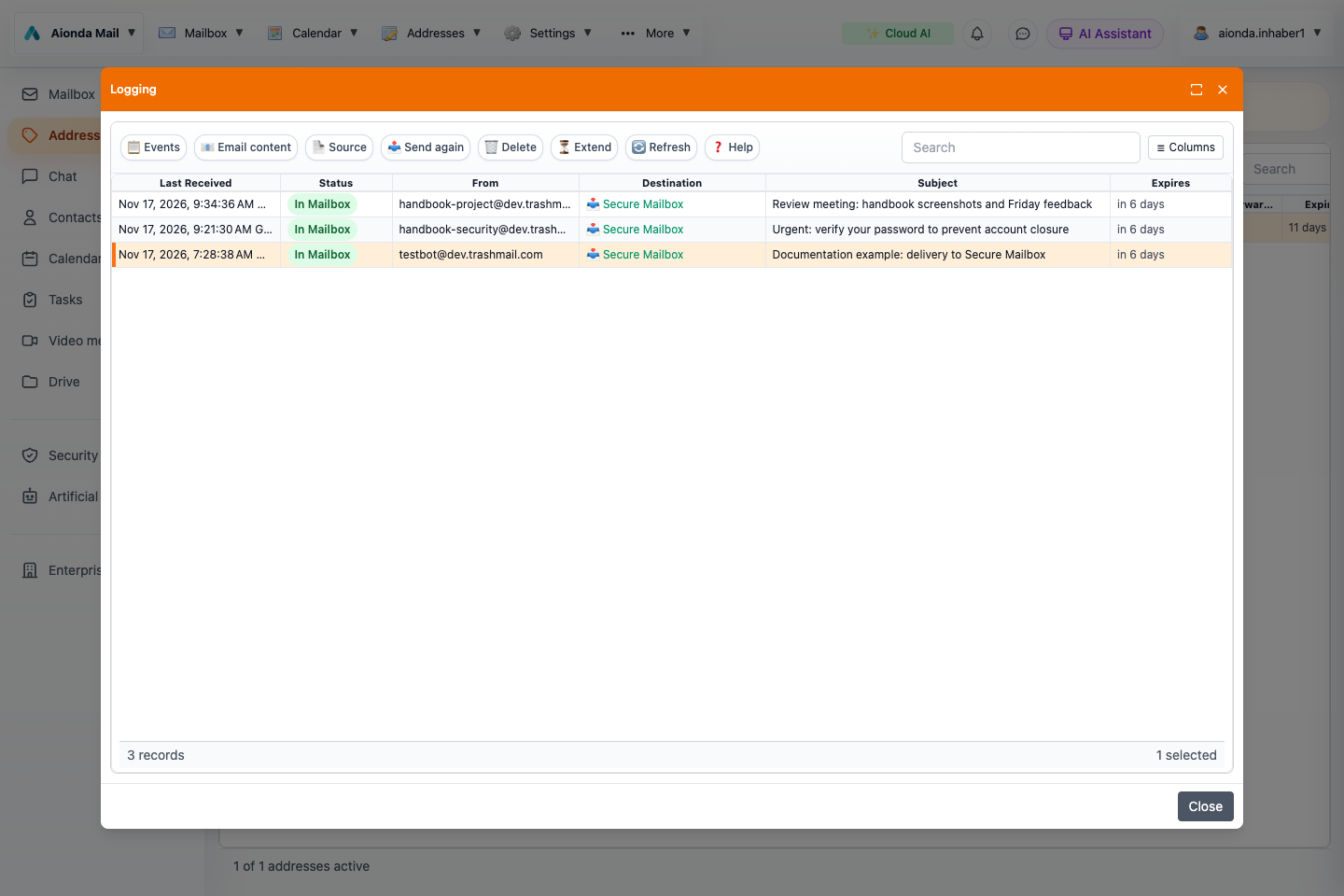
- Select the matching email by time, sender and subject.
- Read Status and Destination.
- Click Events.
Select the screenshot to open the full-size image.
6. Read the individual delivery events
The Events window shows what happened to this particular message. Read the timestamps and event text. Click an event to see its details in the lower panel. In the example, Aionda recorded an incoming message, confirmed the disposable address was enabled, and stored the email in the encrypted mailbox.
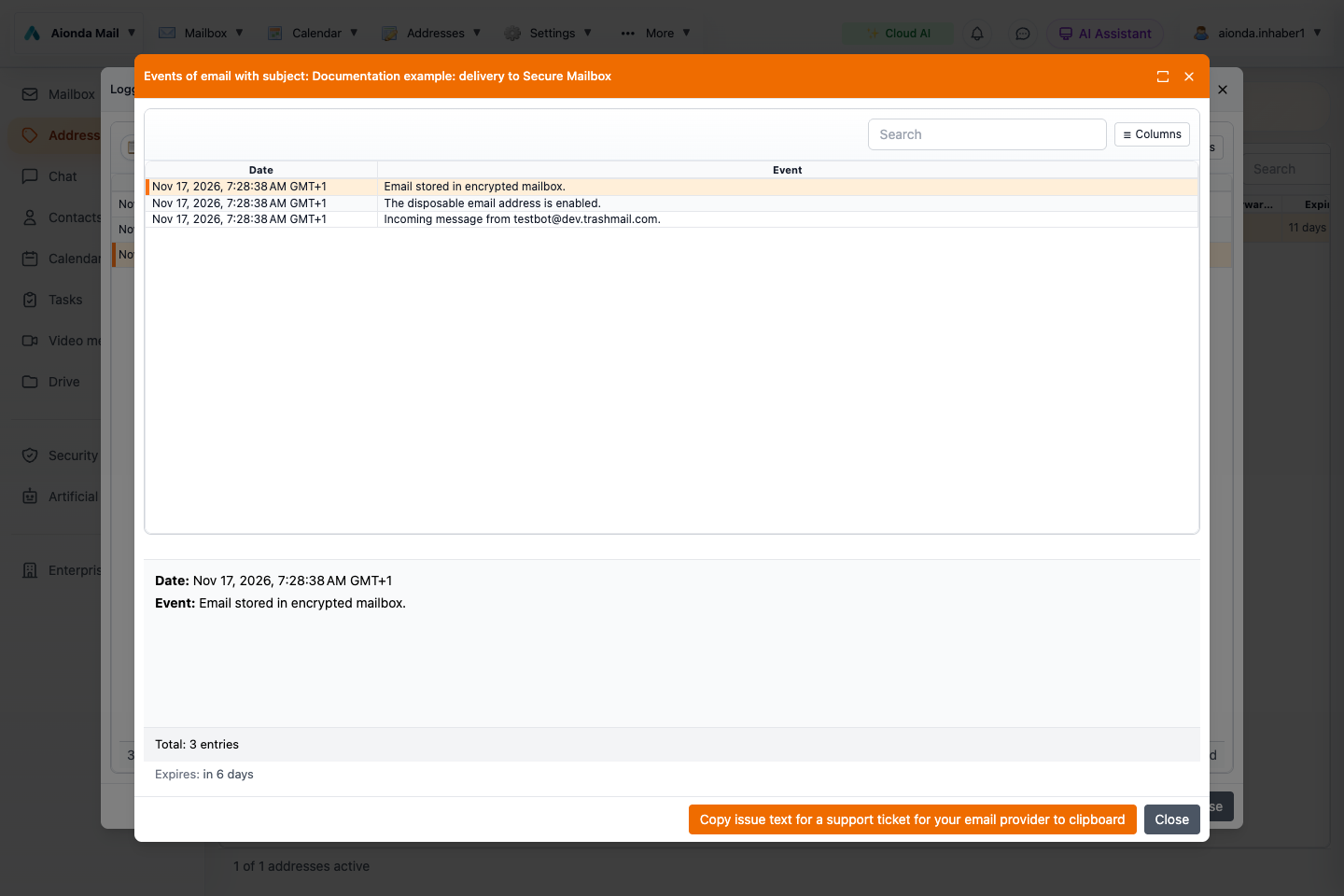
- Read the individual events and select one.
- Read its details in the lower panel. This example confirms storage in the encrypted mailbox.
Select the screenshot to open the full-size image.
| What you find | What to do next |
|---|---|
| Email stored in encrypted mailbox / In Mailbox | Open the Aionda mailbox. Check Inbox, Spam and any folders targeted by your rules. The delivery log records storage, not the message’s current folder. |
| Forwarded or a successful delivery response from the destination server | Check the external destination shown in the log, including that provider’s Spam folder and rules. Acceptance by its server does not guarantee placement in its Inbox. |
| Queued, deferred or a temporary refusal | Read the server response. Delivery may be retried; avoid repeatedly requesting or resending the same message while it is pending. |
| Rejected, bounced or another error | Read the specific event and destination response. Check address validity, limits and the destination before deciding how to correct the problem. |
| Waiting for confirmation | Check the configured sender-confirmation step. Delivery may be waiting for that step to finish. |
7. If there is no matching log entry
First check that you selected the exact address used in the website form. Clear the log Search field and choose Refresh. Check the time and whether the address was active when the website tried to send.
A missing entry does not by itself prove that the website never sent the email: logging settings, retention expiry or rejection before a retained record exists can also leave no matching entry. See Logging: delivery history and retained email for the logging setting and retention limits. Enabling logging now cannot recreate old records.
If there is still no evidence of delivery, check the website’s confirmation page and contact its support with the destination address and approximate request time. If an event shows a destination-provider error, inspect the event details; the support-text copy button can help prepare a report. Review copied text for private information before sharing it. The copy button itself does not send a support request.
Recover an email that is missing from your Inbox
If an email has disappeared from your Inbox, you can still read or recover it from Logging while its original content is retained. Logging must have been enabled when the message was processed; switching it on later cannot recreate a missing original. First check Spam, Trash and folders used by your rules.
Read it online without sending another copy
- Open Addresses, select the receiving address and choose Logging.
- Select one message and click Email content.
- The retained message opens in a separate browser window or tab. You can read it there without resending it. If your browser blocks the window, allow this popup for Aionda and try again.
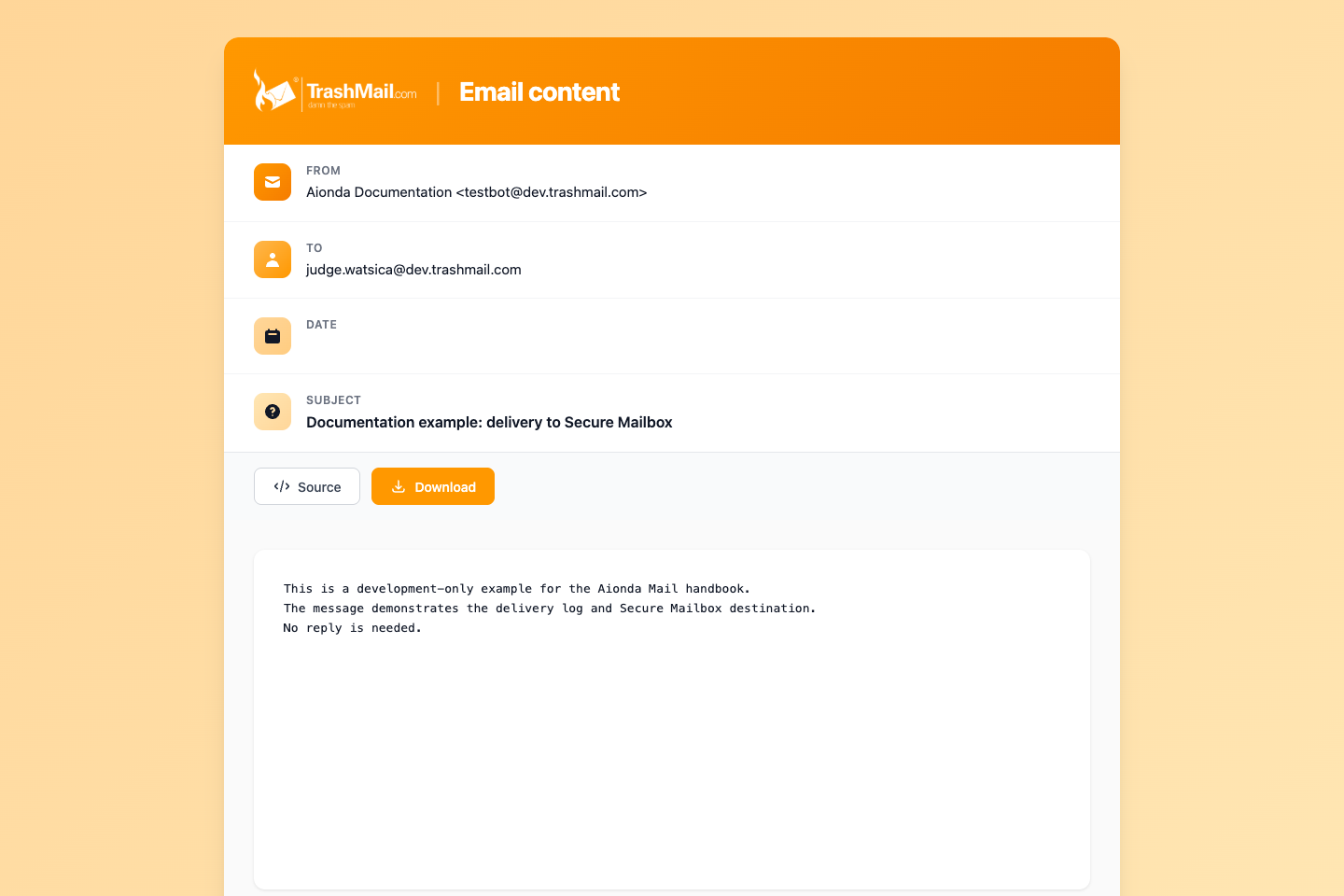
- Confirm the subject.
- Read the retained message directly in the browser; no resend is needed.
Select the screenshot to open the full-size image.
Send one or several emails again
- In Logging, click the message you want to recover.
- For several messages, hold Ctrl on Windows/Linux or Command (⌘) on Mac while clicking additional rows. Check the highlighted rows and the selected count at the bottom right.
- Click Send again. The dialog shows how many emails will be sent.
- Choose the destination: a registered forwarding address, or Secure Mailbox if offered after unlocking your mailbox.
- Check the count and destination, then choose Send once. For Secure Mailbox, this stores the retained messages there; for an external address, it sends another copy. Check the result in the chosen mailbox.
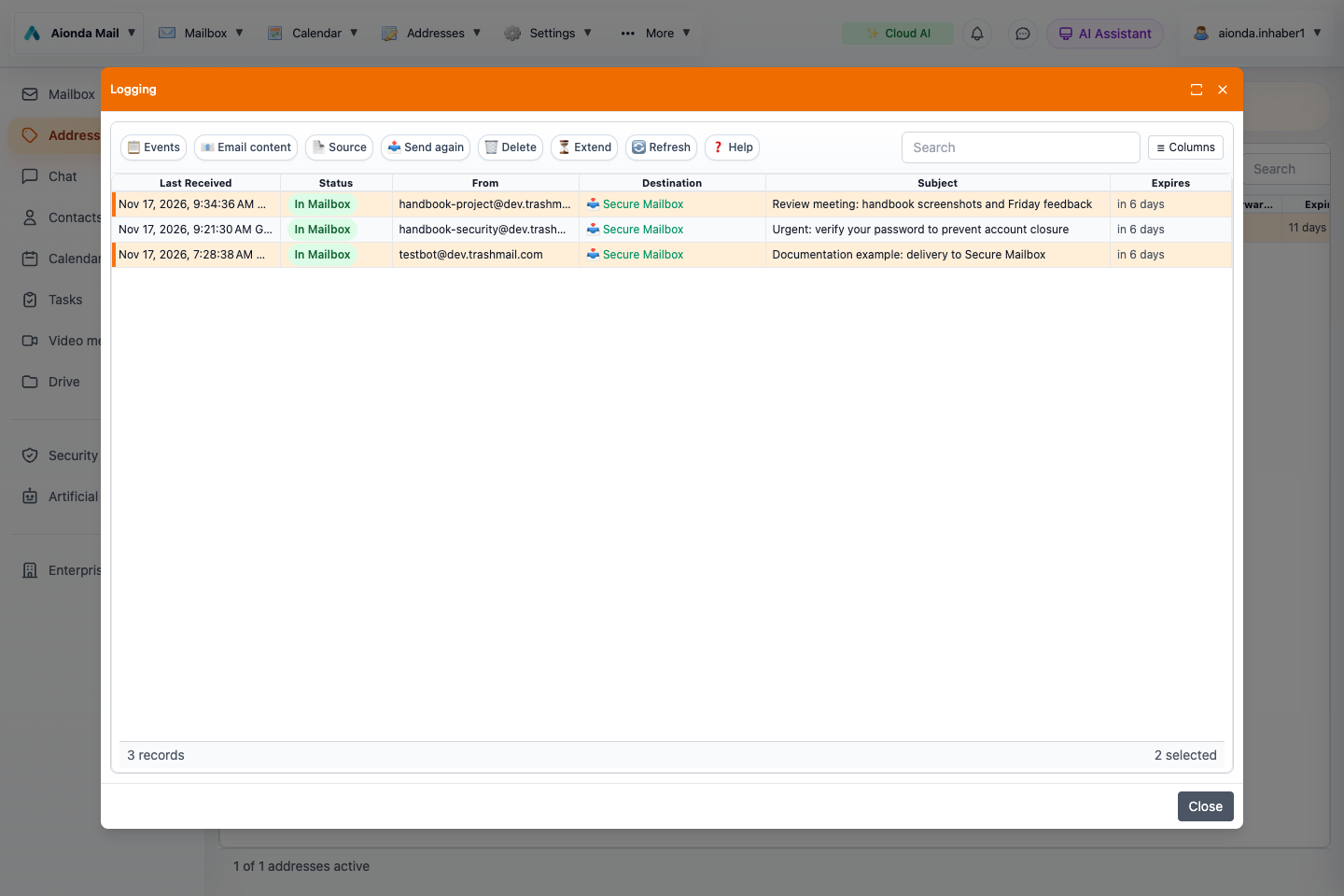
- Check the selected count after Ctrl-click or Command-click.
- Choose Send again for the selected messages.
- Expires shows the remaining retention.
- Extend adds retention time.
Select the screenshot to open the full-size image.
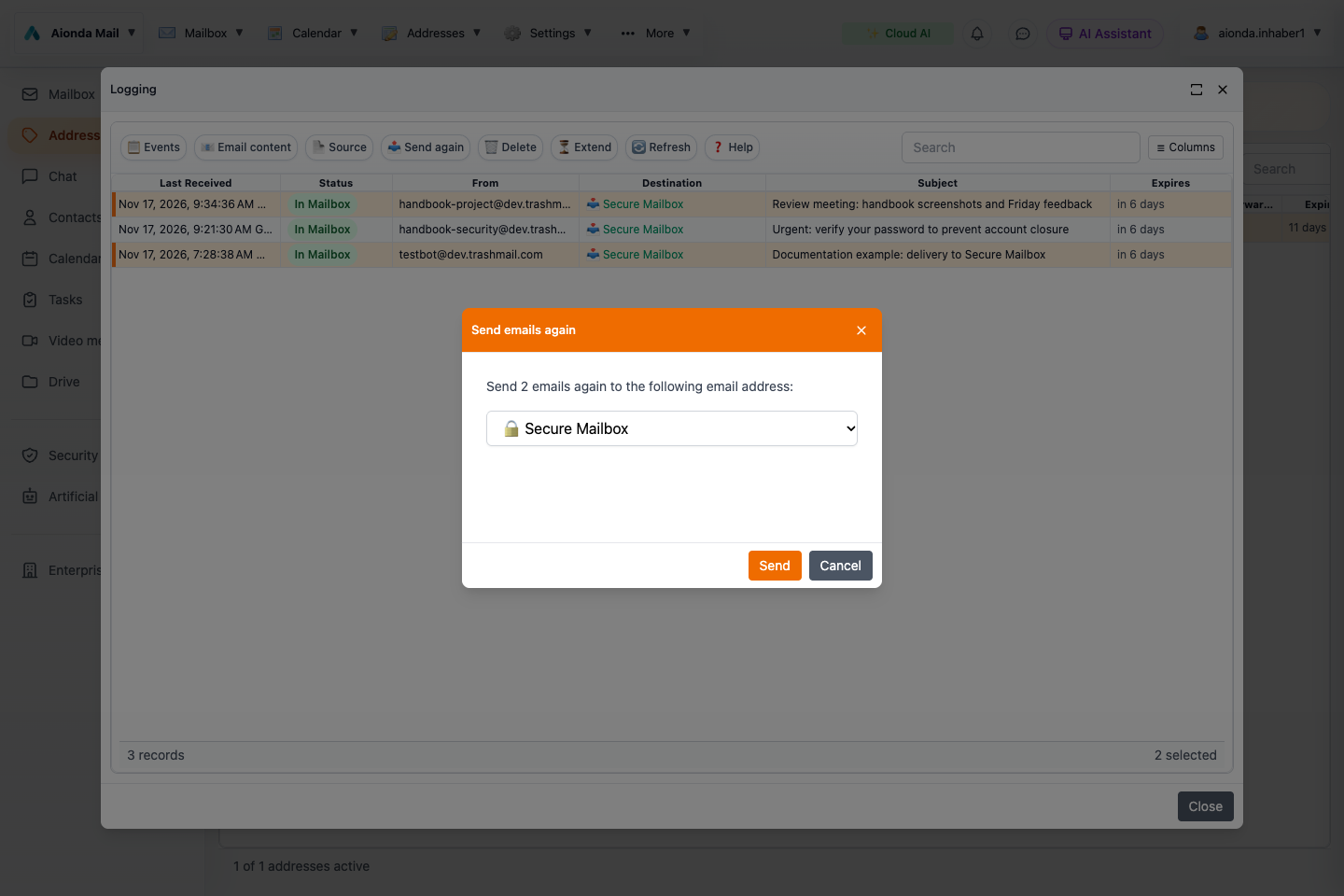
- Confirm how many emails are selected.
- Choose the destination.
- Send applies the action; this example was cancelled.
Select the screenshot to open the full-size image.
These screenshots show two selected test messages and the confirmation dialog; no messages were resent for the screenshots. Resending can create duplicates. If a rule caused the original to move, inspect that rule as well.
How long is the original available?
The standard logging retention is 7 days, when logging is enabled. It is not 14 days by default. Check Expires for the actual remaining time of each entry. Before the deadline, select the entry or entries and choose Extend to add 7, 14 or 30 days.
Once the retained original has been removed, Logging can no longer display or resend it. Extending the log is separate from extending the disposable address’s lifetime, and does not make Logging a permanent archive. See Logging for settings and retention details.
More troubleshooting topics
A message disappeared after opening
Check Spam and the move notification. An Inbox message can be classified after decryption and moved automatically. Use Not spam only after inspecting the sender and message; it creates a sender exception.
Background AI seems inactive
Check that the app is active, the mailbox is unlocked and the affected message is in Inbox. A suspended mobile app does not offer unlimited background execution. Also check AI settings and connectivity.
A colleague is missing from Contacts
Check company membership and shared visibility groups. The owner’s administrative view can differ from an employee’s. A missing eligible standard address is different from a missing directory record. Personal contacts and directory records are separate.
An address changed unexpectedly
Check whether the previously selected DEA expired, was disabled or deleted. The standard-address fallback can select another eligible address. Choose a stable non-expiring address explicitly when publishing business details.
Another device shows old data
Reconnect and refresh. Confirm that both clients show the same account and folder. Do not repeatedly send or delete while a request’s outcome is unclear.
A button or dialog is unusable
Record the client version, window size, theme and exact steps. Include a screenshot without credentials or private correspondence. If a browser permission is involved, include whether it was allowed or denied.
Looking for the meaning of DEA, Vault, MCP or another term? Open the separate Glossary: email and security terms chapter.
Edition and scope
English edition, 17 November 2026. Screenshots show the Web client on Dev with test records. Group administration is available in Web and macOS. Feature availability can differ between clients. Other languages follow after approval of the English content.