

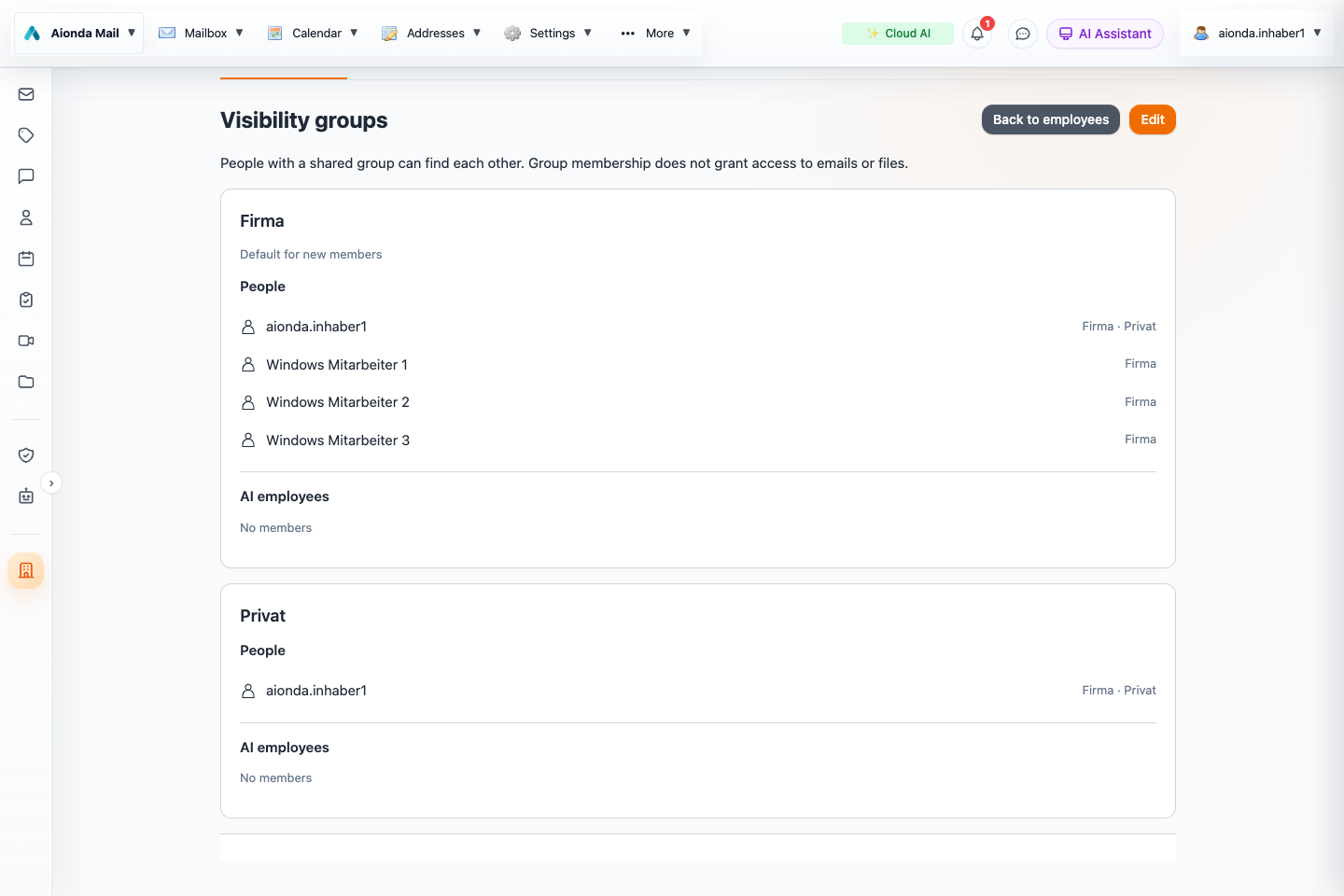
- Edit group names and memberships.
- Company members and their assigned groups.
- Private members are listed separately. The test company uses the names Firma (Company) and Privat (Private).
Select the screenshot to open the full-size image.
How groups work
When the company enables visibility groups, company-directory and recipient discovery use shared membership. For example, people in Private can see one another, while colleagues who belong only to Company do not discover those private members through the company directory. The owner retains an administrative view across the organization.
Membership is explicit. A surname, family relationship or job title does not decide the group. A person who works in the business and participates privately can belong to more than one group. A human member must retain a group; an AI employee belongs to exactly one.
Example
| Member | Membership | Directory scope |
|---|---|---|
| Owner | Company and Private | Administrative view |
| Office colleague | Company | Company colleagues |
| Private member | Private | Private members |
| Private AI assistant | Private | Authorized private context |
This is a conceptual example, not a screenshot or a statement about actual employee memberships.
Administration and client availability
In the Web app, open Enterprise → Employees → Visibility groups as the owner. The macOS app offers the equivalent group administration. Enable groups deliberately and review the initial memberships. Choose Edit to add or rename groups and select human and AI memberships. Review the preview before saving; Cancel discards the changes. In Chat, members of multiple groups can filter people by group. Other native clients may not yet offer the same administration screen.
AI employees already in use cannot simply be moved to another group in this first version. Create a separate AI identity for the new scope instead of carrying existing context across that boundary. Group deletion is not offered in the initial administration flow.
Edit memberships step by step
- Open Enterprise, select Employees and find Visibility groups. Choose Edit.
- Use the group name field to rename a group. Select the people who should belong to it. A person may belong to several groups.
- Review AI employees separately. Their group assignment is a distinct choice; the absence of AI employees in this test company does not mean that groups apply only to people.
- To add a group, enter its name and choose Add group.
- Choose Preview visibility. Check the people each member will be able to discover, then Save. Cancel leaves the saved memberships unchanged.
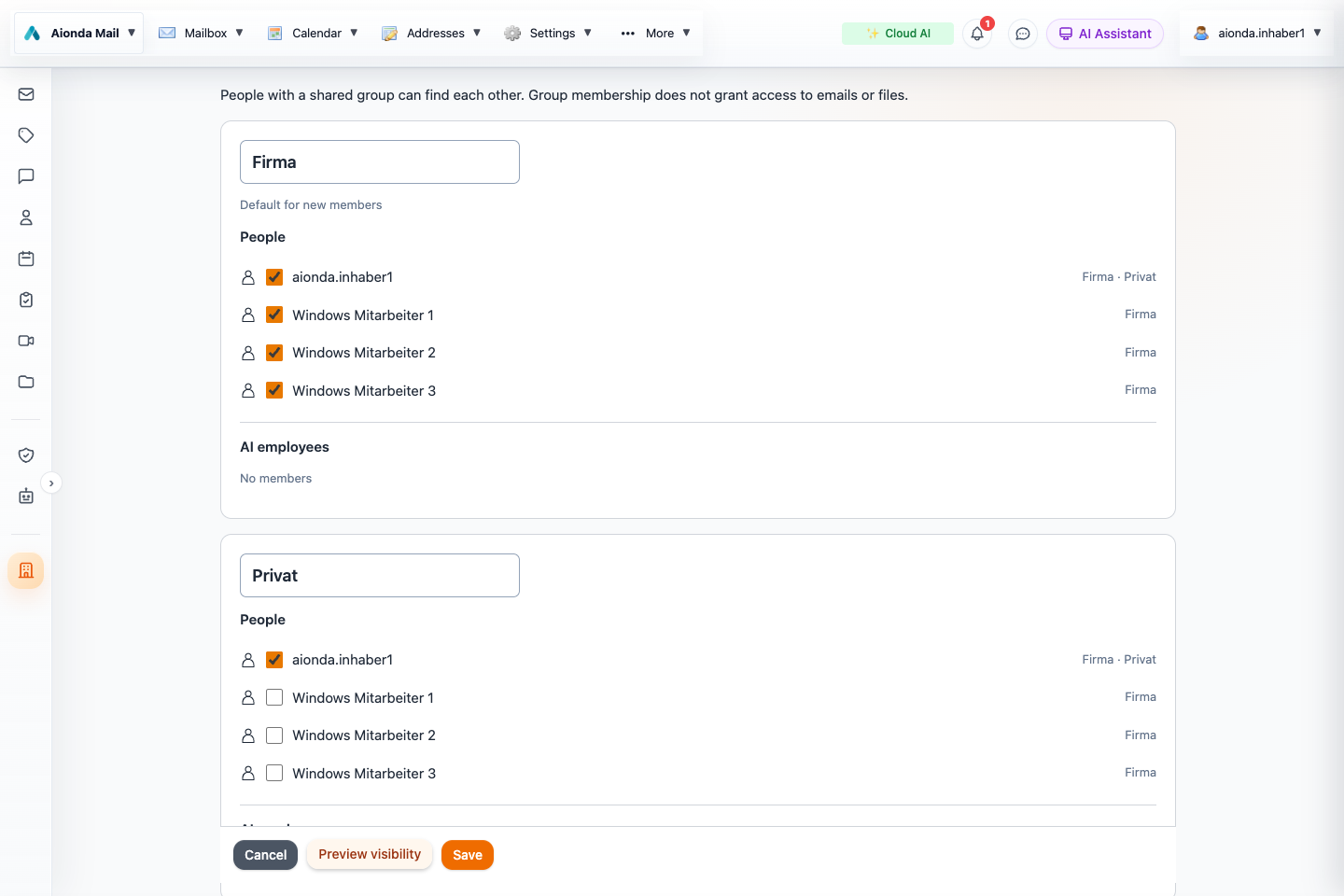
- Rename a group.
- Select human members.
- Preview the visibility before saving; Cancel discards your edits.
Select the screenshot to open the full-size image.
Check the result before saving
The preview shows the resulting visibility for each person. Check members who belong to several groups as well as members who should remain private. The owner remains able to administer the entire organization.
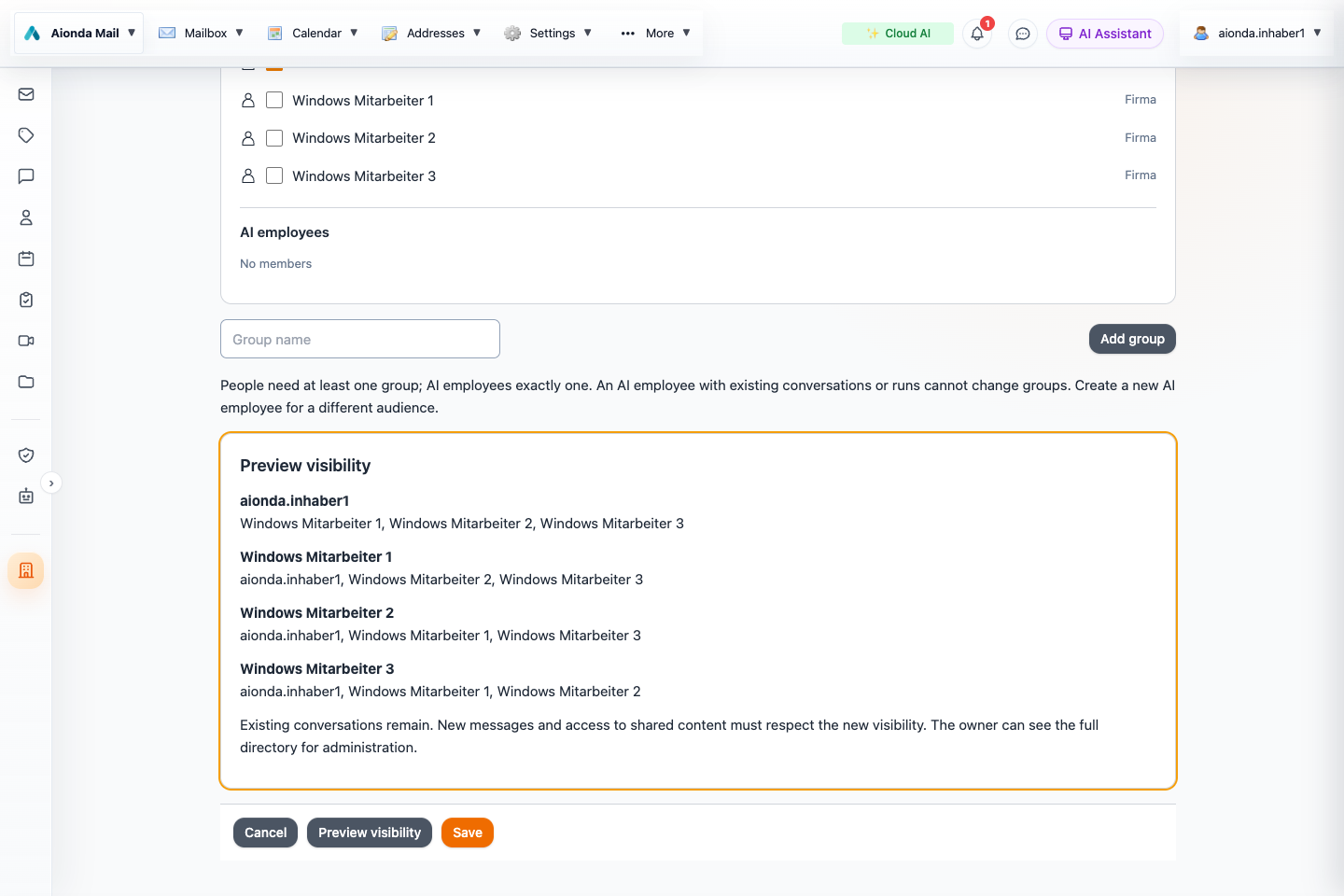
- Add a named group when needed.
- Inspect the resulting visibility for each member.
- Save only after checking the preview.
Select the screenshot to open the full-size image.
What groups do not do
Groups do not grant file or mailbox access by themselves. They do not erase existing chat history, personal contacts or previously downloaded copies, and they do not hide members from authorized owner administration. Grant and revoke resource shares separately.