

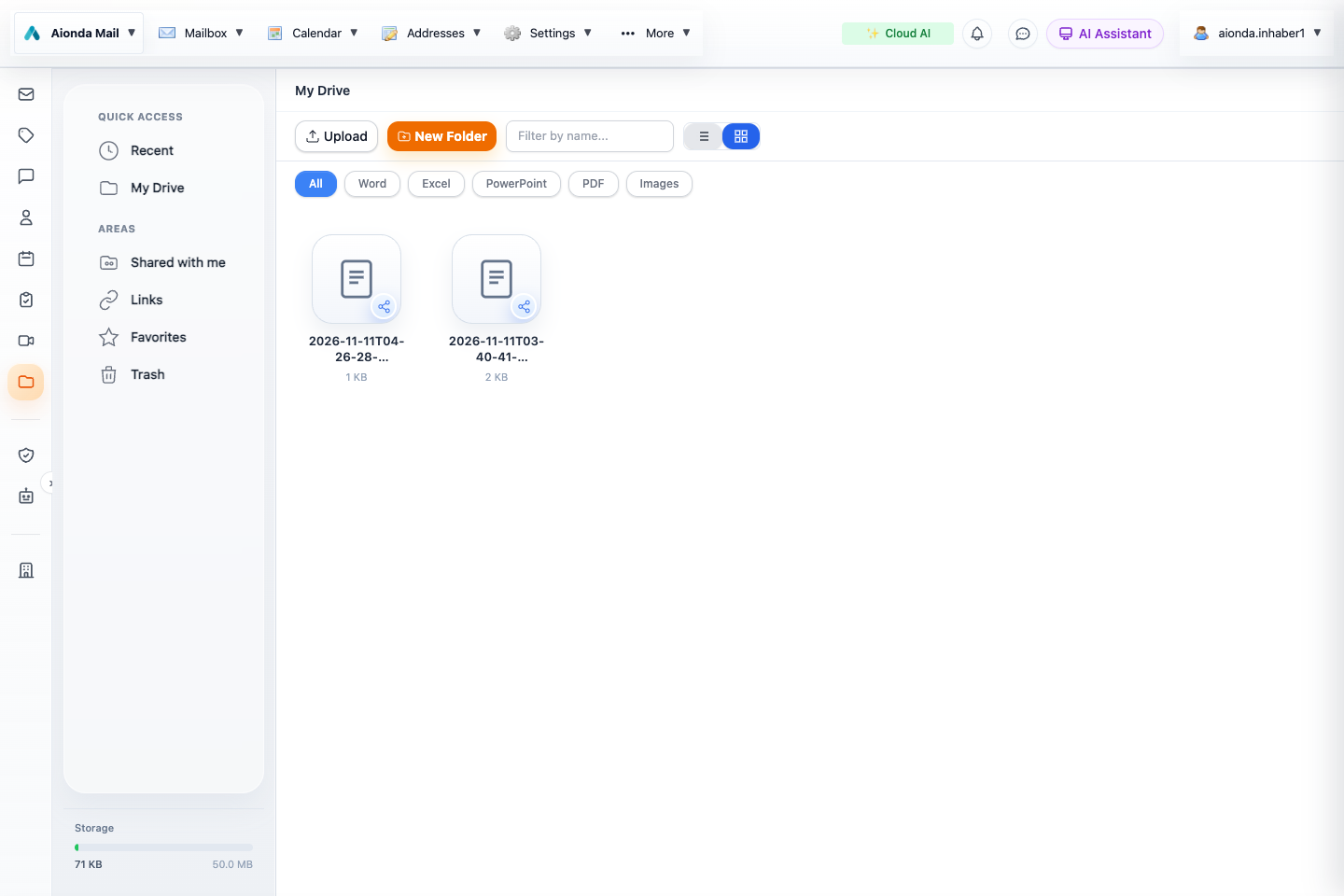
- Upload files or create a folder.
- Switch between your files, incoming shares and links.
Select the screenshot to open the full-size image.
Upload and organize
- Unlock your mailbox and open Drive.
- Choose Upload or drop files into the workspace.
- Create folders for projects and use search or favorites to find frequent items.
- Preview or download a file to confirm that the upload completed correctly.
Drive encrypts file content in the client before upload. File keys enable sharing without publishing the rest of your storage. Mail and Drive storage contribute to the quota shown in your account; deleting a local original does not increase the server quota.
Share with an Aionda user
Open the item’s sharing action, choose an eligible recipient and select the permission level. Read access allows viewing or downloading. Full access permits additional changes offered by that share, such as uploading or renaming. Review Shared with me for items received from others. Visibility groups restrict eligible company recipients but do not themselves grant file access.
Share with an external link
Where link sharing is offered, create a link and review its access options, including password or expiry when available. Send the link only to the intended recipient. Anyone who obtains the required link and credentials may be able to use it. Revoke links when access is no longer needed.
Change or revoke access
Review the item’s sharing settings and remove obsolete recipients or links. Revocation stops subsequent authorized access through the service; it cannot recall copies already downloaded. Moving a file to Trash is different from permanently removing it. Confirm the selected item and ownership before permanent deletion.