

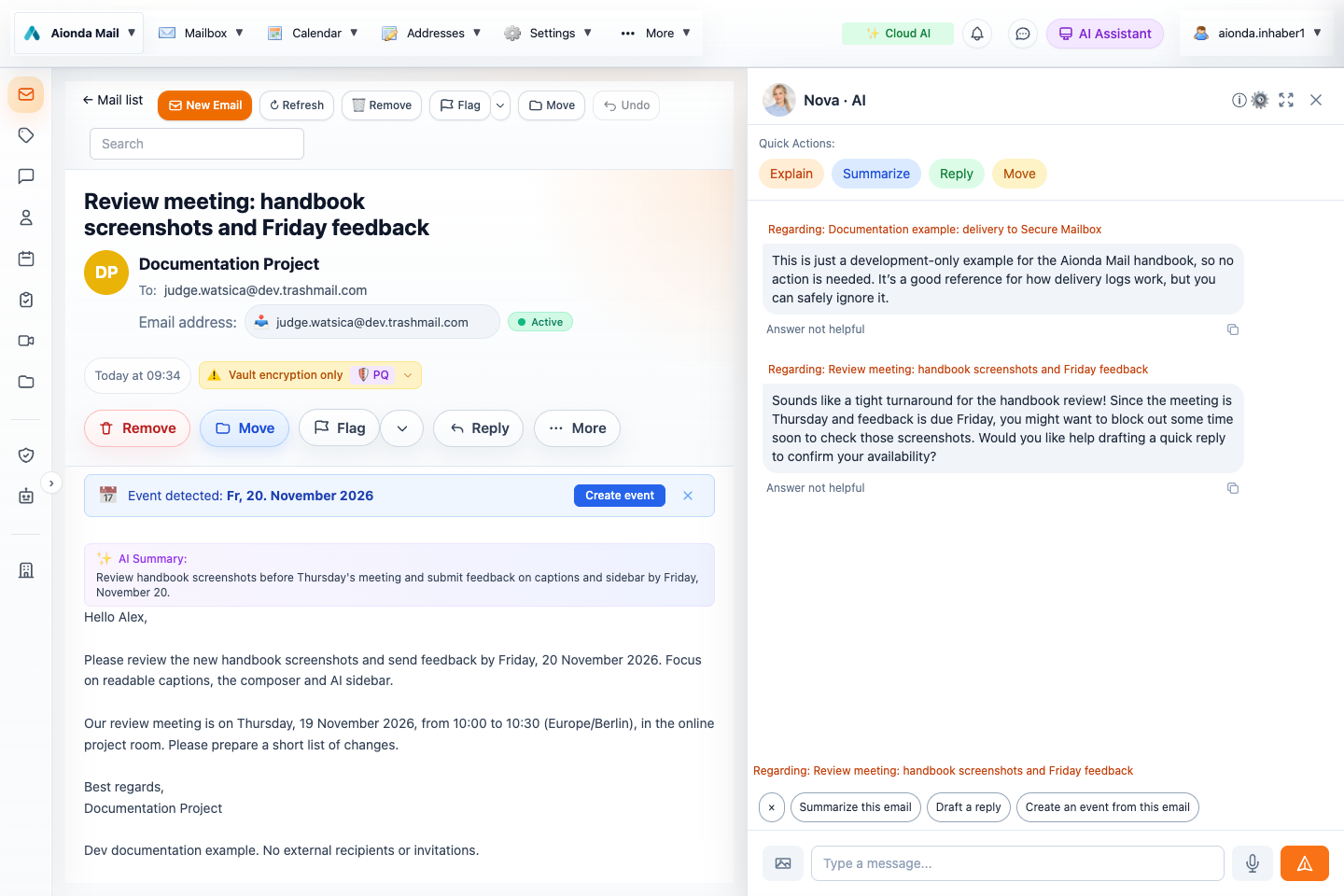
- Read the current email.
- The opened AI sidebar comments on the message.
- The message reference keeps follow-up questions tied to the right email.
Select the screenshot to open the full-size image.
Open the assistant beside an email
Open a message, then choose AI Assistant in the top bar. The sidebar displays the selected assistant persona, Nova or Orion, alongside the message. On narrower layouts, the app gives the reading pane and assistant more space and offers a return to the mail list. Fullscreen expands the assistant when you want to concentrate on the conversation.
The “Regarding” reference identifies the email used as context. Check it when switching messages. Quick actions such as Explain, Summarize and Reply offer convenient starting points; you can also type a specific request.
Let AI comment on opened emails
- Open Artificial Intelligence, or use AI settings in the sidebar.
- Enable Automatically comment on opened emails.
- Keep the assistant visible and open an email. After a short pause, it can comment on the content and suggest a next step.
- Move to another email to receive context for that message. Turn the option off when you prefer to ask manually.
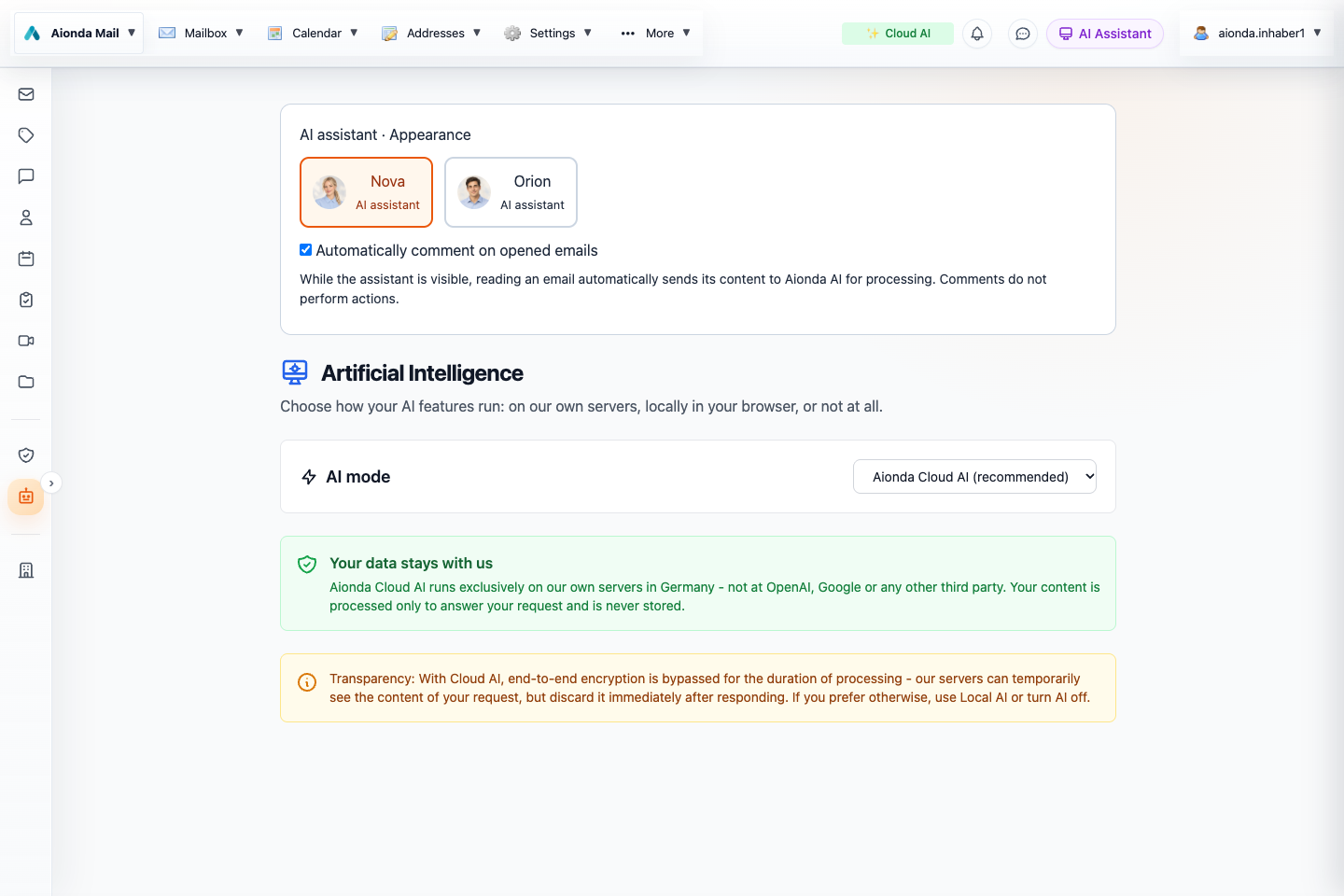
- Enable automatic comments while reading.
- Choose Cloud AI, Local AI or Off.
- Read the processing information.
Select the screenshot to open the full-size image.
Automatic comments are read-only: they do not send messages, create appointments or perform tool actions. The app avoids interrupting an active request or text you are already typing. A hidden browser tab or closed assistant does not continuously comment on every incoming email. The commentary feature is separate from background spam/phishing checks.
Example: understand the next step
The test email asks for screenshot feedback by Friday and mentions a Thursday meeting. The assistant comments on those details while the original message remains visible. You can follow up with: “List the deadline and what I should prepare.” Always compare the answer with the email; a statement from the sender is not independently verified evidence.
Example: create a follow-up task
Ask: “Create a task called Review handbook screenshots, due 20 November 2026.” The task tool can create the task directly. Confirm the title and due date in the result and in Tasks; requesting a task is different from merely discussing one.
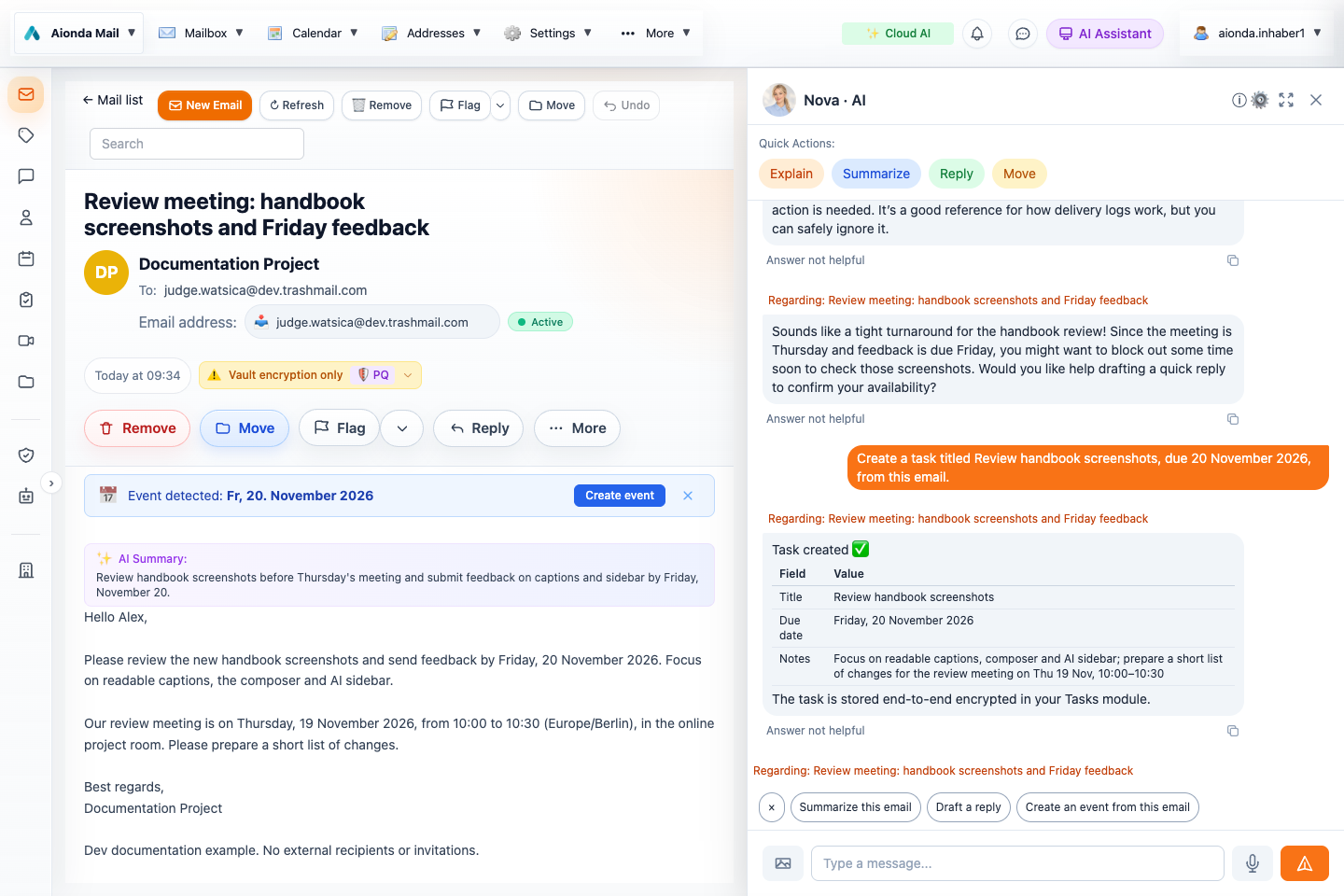
- The original email remains available for reference.
- An explicit task request and the assistant’s result.
- Continue with a follow-up request.
Select the screenshot to open the full-size image.
Example: inspect your mailbox
Ask: “List my mailbox folders and their message counts.” The assistant retrieves folder information instead of guessing. You can follow up with a request to list a specific folder or search for a subject.
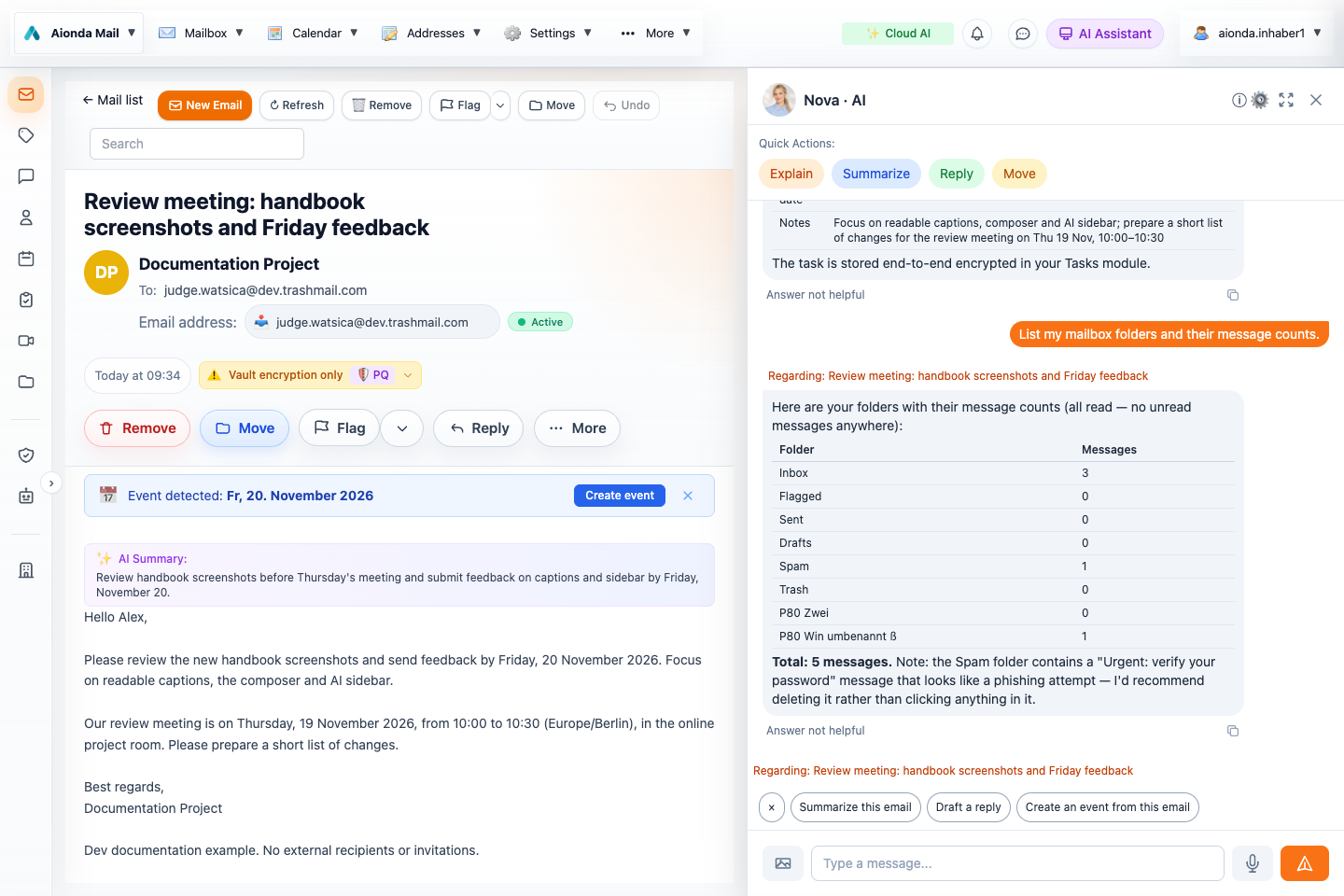
- Keep the email visible beside the assistant.
- The assistant reports mailbox folders after a tool request.
- Ask a more specific follow-up.
Select the screenshot to open the full-size image.
Drafts, forms and confirmations
“Draft a reply” opens the composer for review; it does not send. Contact, calendar and rule preparation can open editors that you still need to review and save. Sending and destructive actions have their own confirmation behavior. Some reversible actions, such as creating a task or toggling a rule, take effect directly. The complete tool reference distinguishes these cases.
Images, voice and privacy
The attachment/photo control supplies an image to the assistant where supported. Voice input lets you dictate a request when browser permissions and the feature are available. Review the recognized text before relying on it. These capabilities can use separate cloud processing; local text mode is not a promise that every feature is offline.
Only provide the context needed for the request. The setting for automatic comments explicitly allows readable email content to be processed while the assistant is visible. Cloud AI uses Aionda-owned infrastructure in Germany; external MCP assistants have their own processing boundaries.