

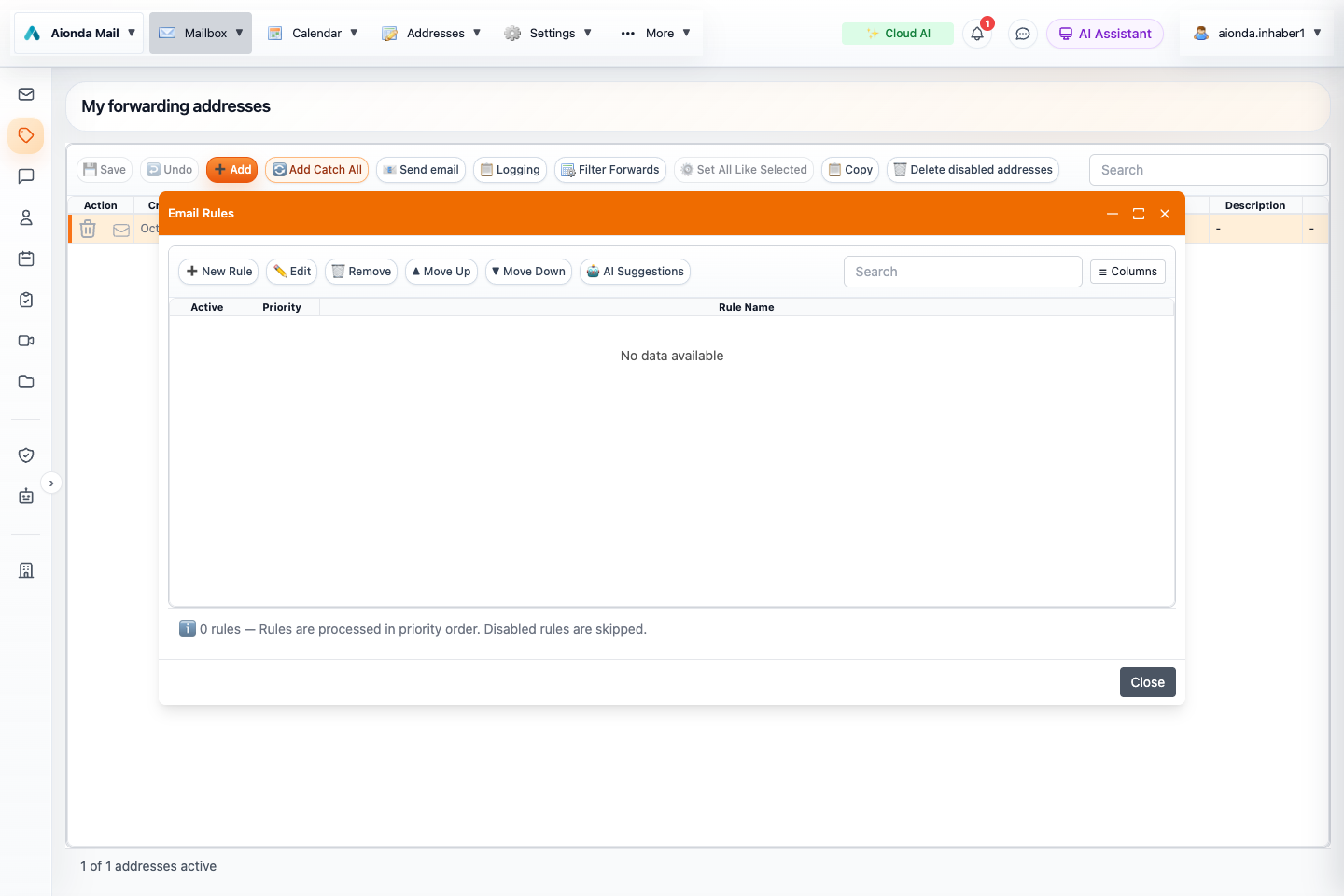
- Create a rule or edit a selected rule.
- Adjust processing priority.
- Ask AI for a rule suggestion, then review it.
Select the screenshot to open the full-size image.
Create a rule
- Open Rules from the Mailbox menu.
- Give the rule a descriptive name and choose whether all or any conditions must match.
- Select a field such as sender, recipient or subject, then a comparison and value.
- Choose an action such as moving to a folder or marking as read. Use only the actions offered for that processing path.
- Save and test with a message that should match and one that should not.
For example, match an exact newsletter sender and move new messages into Newsletters. A broad “contains” condition can match more senders than intended. Check rule ordering and overlapping conditions when the result is unexpected.
Sender exceptions are rules
Not spam creates a sender-trust rule in the ordinary rules collection. Keep it visible and editable there rather than maintaining a separate, hidden whitelist. Removing the rule removes that exception for future classification; it does not delete old mail.
Email processor
The email processor controls incoming and forwarding behavior, including filtering and header rewriting. It is separate from the low-priority client AI queue. Server rules cannot freely inspect content that exists only encrypted in a user’s mailbox; supported conditions depend on the processing stage.
AI assistance
Describe a rule in natural language if the AI rule assistant is available. Inspect the generated conditions, destination and actions before saving. Test the narrowest useful condition before applying destructive or broad rules.