
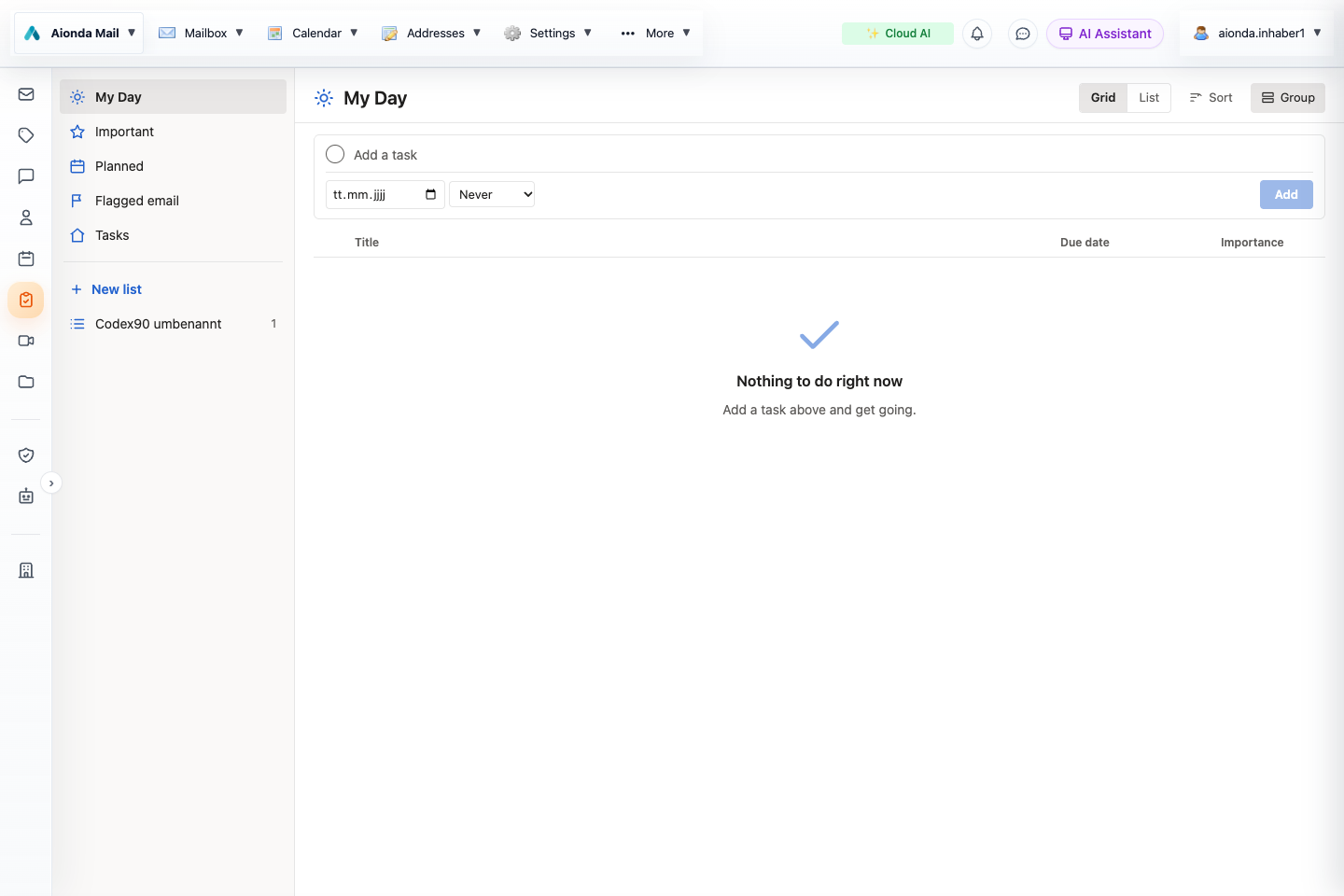
- My Day, Important, Planned and Flagged email are different views.
- Enter a task and optional due date.
Select the screenshot to open the full-size image.
Capture and organize
Open Tasks and enter a task title. Add a due date, importance or recurrence when needed. Create lists for separate projects. My Day is a focused daily view; Planned and Important help you find work across lists.
- Create a task in the intended list.
- Add a clear action and a useful due date.
- Mark it complete when done; reopen it if further work is required.
Flagged email
Flag a message in Mailbox to make it available in the flagged-email task view. Opening the task takes you back to the associated mail. Flagged email across the account can differ from a filter on one folder. Counts should describe the actual matching set rather than only the rows currently loaded on screen.
Ask the assistant
The AI task tools support listing, creating, updating, completing, reopening and deleting tasks, as well as working with task lists. Check the selected list and due date after an AI action. A deleted task is not the same as a completed task.