

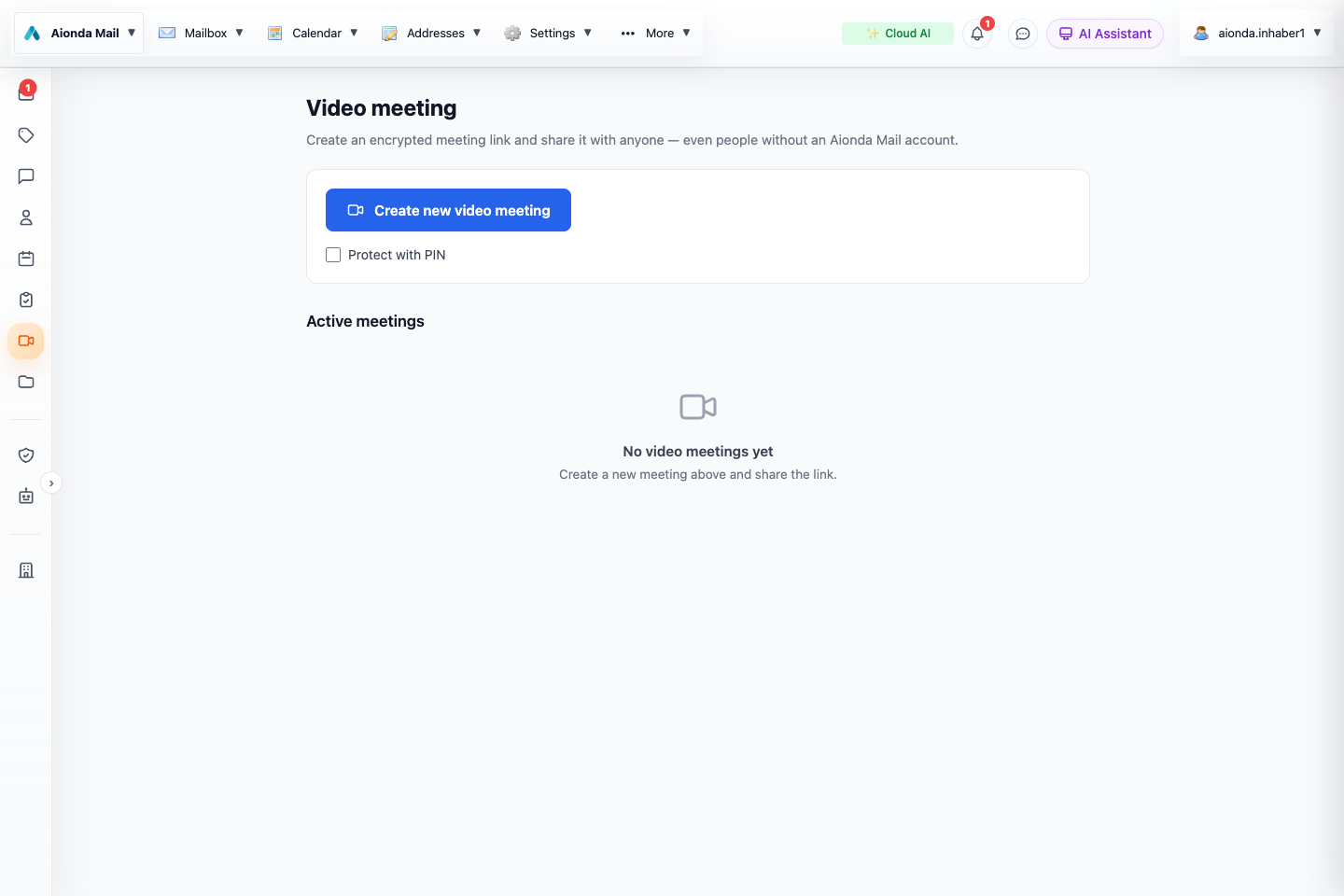
- Create a new meeting.
- Enable PIN protection before creating it when needed.
- Active meetings appear here so you can join or end them.
Select the screenshot to open the full-size image.
Create and invite
- Open Video meeting in the sidebar.
- If needed, select Protect with PIN before choosing Create new video meeting.
- Use the invitation controls shown for the created meeting. Share the meeting link only with the intended participants, including guests without an Aionda Mail account.
- Join the meeting and respond to the browser’s microphone and camera permission prompts.
Treat the full invitation as confidential. Do not publish it in a screenshot or public documentation. If you use a PIN, give it to the participants through an appropriate channel.
During the meeting
Use the microphone button to mute or unmute, the camera button to turn your video off or on, and Share screen to choose a screen or window in the browser’s own picker. Check that the selected content contains no private messages or unrelated documents. Use Leave call to leave your call session. The meeting owner can end an active meeting from the meeting list.
If camera or microphone does not work
Check the site’s browser permissions and the operating system’s privacy settings. Another application may already be using the device. A denied permission can prevent the call from starting even when the meeting link is valid. Allow the required device access and retry.
What this illustration shows
The screenshot shows the real Web meeting creation screen before an invitation has been generated. It does not show a connected multi-person call or demonstrate successful remote audio, video or screen sharing.