

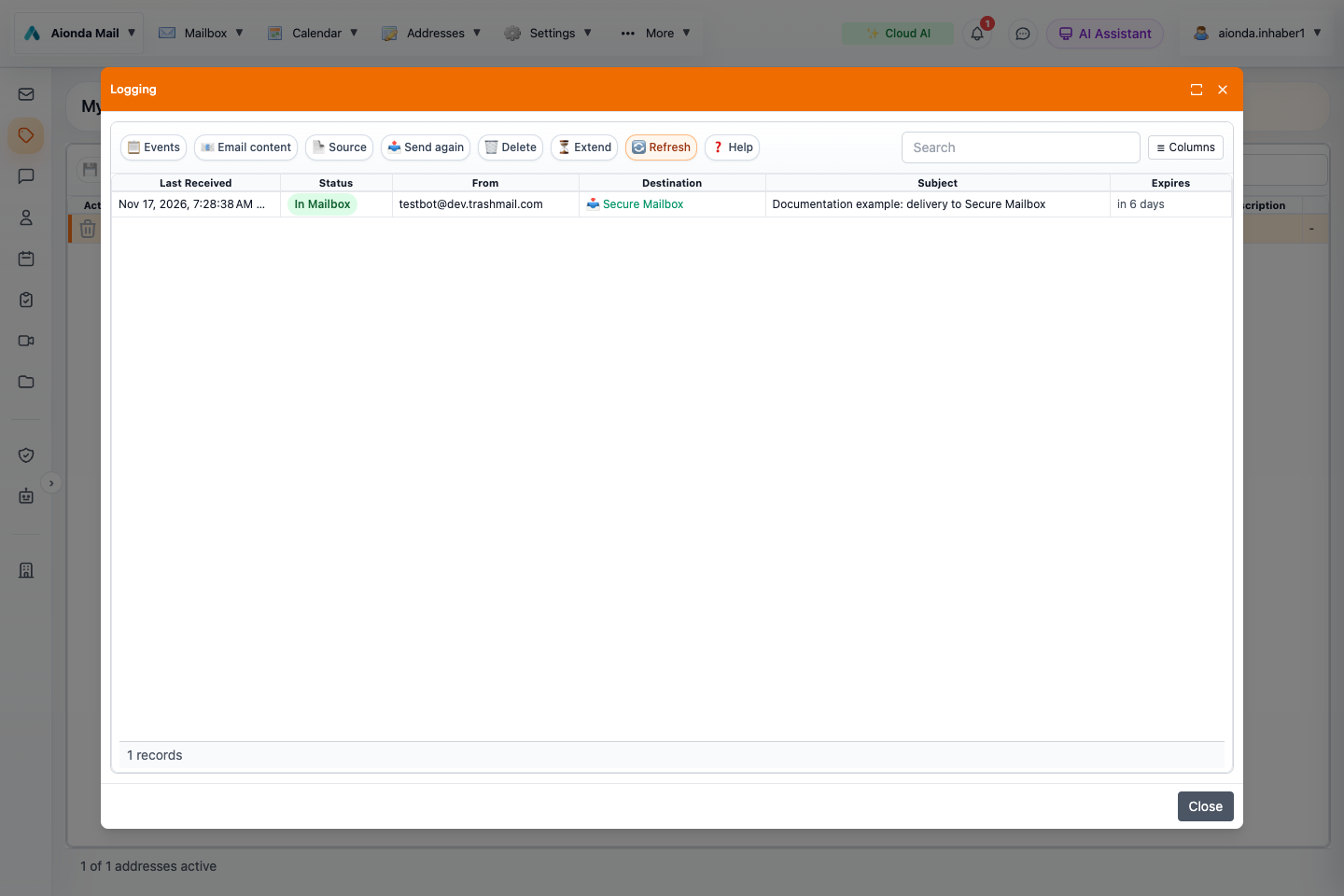
- Open Events, Email content or Source for the selected message.
- Review status and destination.
- Check expiry before extending retention or recovering a message.
Select the screenshot to open the full-size image.
Open the right log
- Open Addresses and select the alias that received the message.
- Choose Logging. Check the time, sender and subject; use Search when there are many entries.
- Select the relevant message and choose Events.
- Read the individual receipt, processing and delivery events, not just the summary status.
The log answers “what happened to this delivery?” It is different from the current folder of a message in your mailbox, and different from the long-term enterprise archive.
Enable logging deliberately
The email processor includes Log email requests. In the Web menu, open More → Email processor to inspect this option. Enabling it affects new processing; it does not recreate content from messages that were never retained.
Logging can retain the complete original message, not just technical events. This separate server-side copy supports viewing and resending. For ordinary unencrypted incoming mail, do not treat that retained original as zero-knowledge vault content. PGP-protected content remains encrypted in its original message form. Choose logging and retention according to the confidentiality of your correspondence.
Read the status correctly
| Status | Meaning and next step |
|---|---|
| In Mailbox | A copy was stored in the Secure Mailbox. Open the mailbox and check its current folder. |
| Forwarded | The destination server accepted the mail. If it is not visible, check that provider’s spam, rules and mailbox. |
| Queue or delayed | A delivery is pending or a temporary rejection requires retrying. Read the server response before sending another copy. |
| Waiting for confirmation | A configured sender confirmation step has not yet completed. |
| Fail-over | A fallback destination was used. Inspect which destination received the message. |
| Error or rejected | Read Events for the actual rejection or failure, such as a recipient issue, address limit or destination refusal. |
Inspect Events, Email content and Source
Events provides timestamps and the processing history. It can explain whether the alias was enabled, which rule or filter intervened and whether delivery succeeded. The events dialog includes a support-text copy action; inspect that text for personal details before sharing it.
Email content opens the retained message when available. Source helps inspect the original mail, including headers and MIME structure. These actions depend on retained data; an entry or error notification is not a promise that full content will remain available forever.
Retention: save the evidence you need
Inspect the Expires column. The standard log retention is seven days; the displayed deadline is authoritative for that entry. Select messages and choose Extend to use the offered 7-, 14- or 30-day extension. Extending a log is separate from extending the receiving address. Expired records are eligible for cleanup, so do not wait until after the deadline to preserve important evidence.
Resend one or multiple messages
To recover several messages together, hold Ctrl on Windows/Linux or Command (⌘) on Mac while selecting their rows. Check the selected count, then use Send again once for the whole selection. For reading without resending, select one message and choose Email content. See the illustrated recovery walkthrough.
Resend or store in the Secure Mailbox
- Correct the original delivery problem and select the retained message.
- Choose Send again.
- Review the destination. Choose a registered real email address to send another copy, or Secure Mailbox when offered after unlocking to store it there.
- Confirm the action and inspect the new result.
Resending can create a duplicate and is a real delivery action. Do not use it repeatedly while a previous attempt is still queued. Saving in the Secure Mailbox creates a separately retained mailbox copy; it does not turn the log itself into an enterprise archive.
Example diagnosis
A shop says it sent an invoice, but your external Inbox is empty. Find the alias, open Logging and inspect Events. If the external server accepted it, check that provider’s folders. If it returned a temporary error, examine the queue state. If the selected destination was Secure Mailbox, read it in Aionda instead. This avoids changing an alias or sending duplicates before identifying the actual route.