

Why choose a native app?
Aionda Mail is built for each operating system, with native mailbox navigation, message lists and controls. This keeps the everyday interface closely integrated with your phone, tablet or computer.
- Less CPU and memory overhead. The application interface does not need a complete web application running inside a bundled browser. Avoiding that additional layer leaves more resources available for your messages and other apps.
- Energy efficiency. Less unnecessary processing can reduce power consumption and heat. On a phone, tablet or laptop, that can help the battery last longer; desktop computers also benefit from avoiding unnecessary work.
- Responsive interaction. Native controls and direct integration with the operating system are designed to make everyday actions feel immediate, with smooth navigation and quick responses to taps, clicks and keyboard shortcuts.
- A familiar experience. The interface follows the conventions of each platform, including its window or touch navigation, accessibility features and system controls.
Some desktop applications package a web interface together with a browser runtime. This is a different architecture from Aionda’s native interface. HTML email still needs a web renderer to display its content; using one for a message does not make the entire application a browser wrapper.
Actual memory use, speed and battery life depend on your device, mailbox, attachments and current activity. Synchronization, encryption, video calls and local AI all require resources. These design advantages are not a fixed battery-life promise or a measured comparison against another product.
The screenshots below show real apps connected to test accounts. The app interfaces are English; some example emails were written in German. Development labels identify the test environment.
Mac: a desktop workspace
Folders, message list and reading pane sit side by side. Native toolbar controls give quick access to common email actions.
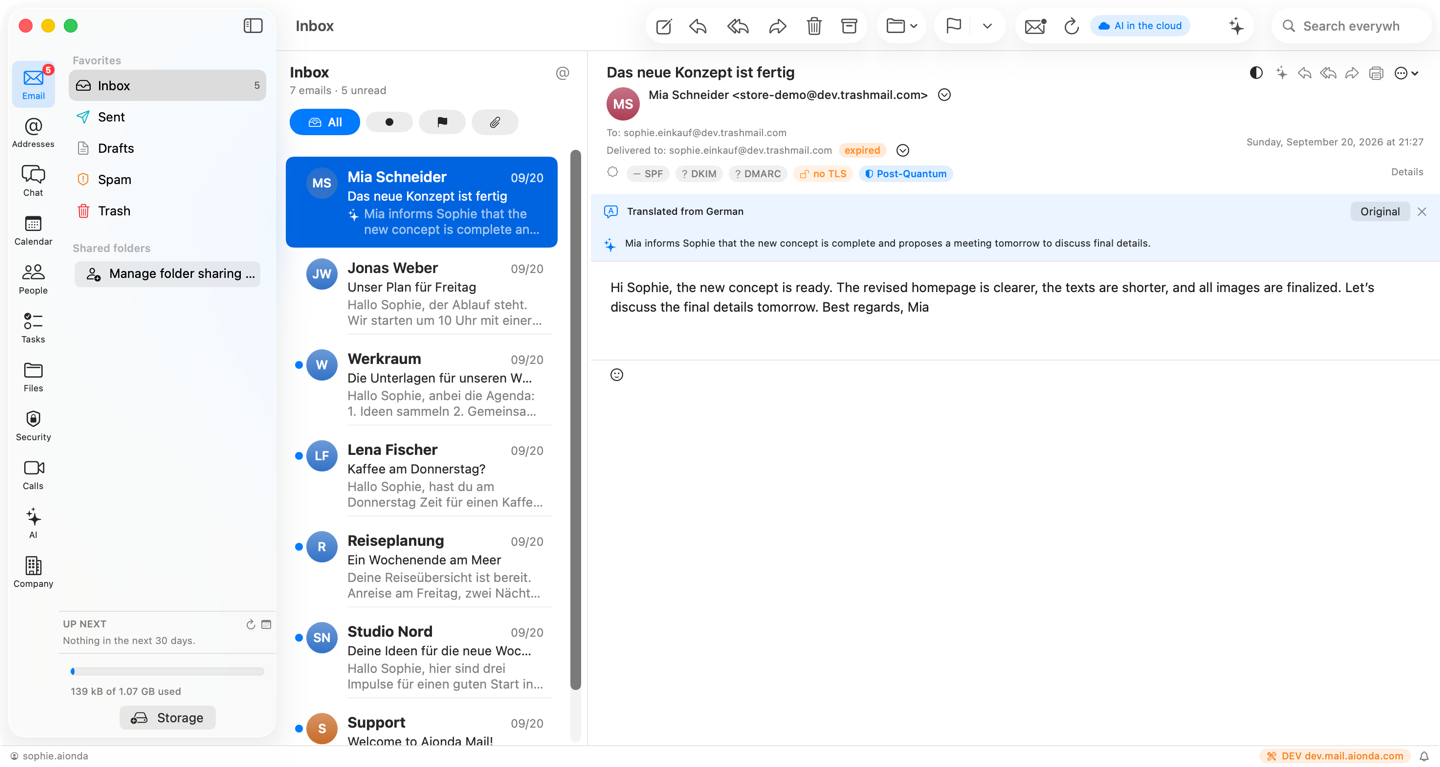
- Native macOS navigation and mailbox folders.
- Message list.
- Reading pane with the app’s English AI summary and translation of a sample German message.
Select the screenshot to open the full-size image.
iPhone: your inbox on the move
The phone layout keeps the message list in focus. Open an email with a tap, narrow the list with filters and reach the other modules from the bottom navigation.
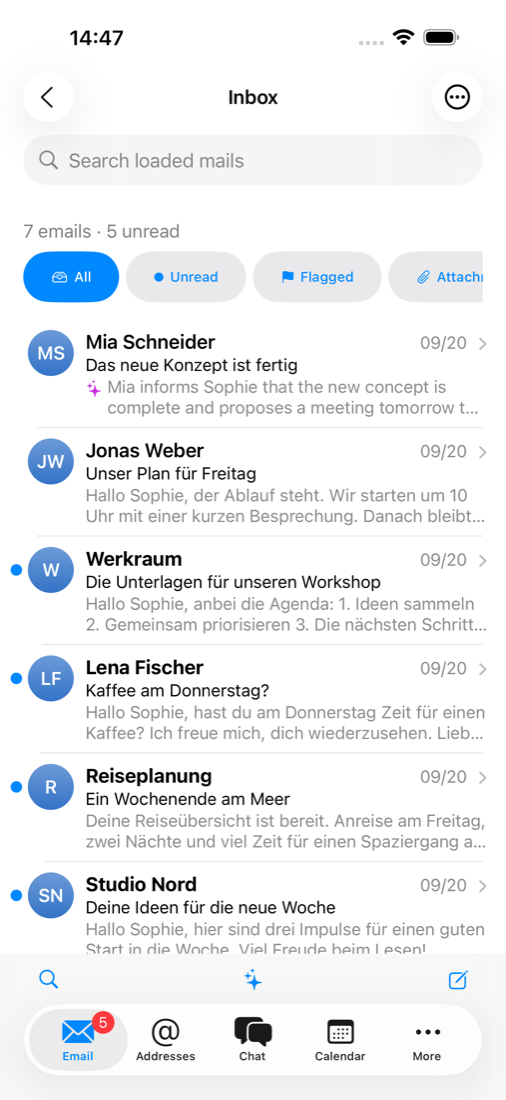
- Search and filter your inbox.
- Open an email from the list.
- Search, open AI assistance or compose a message from the toolbar.
- Switch modules using the bottom navigation.
Select the screenshot to open the full-size image.
iPad: more room for your messages
In landscape, the sidebar, message list and reading pane share the screen. Select another email while keeping the mailbox context visible.
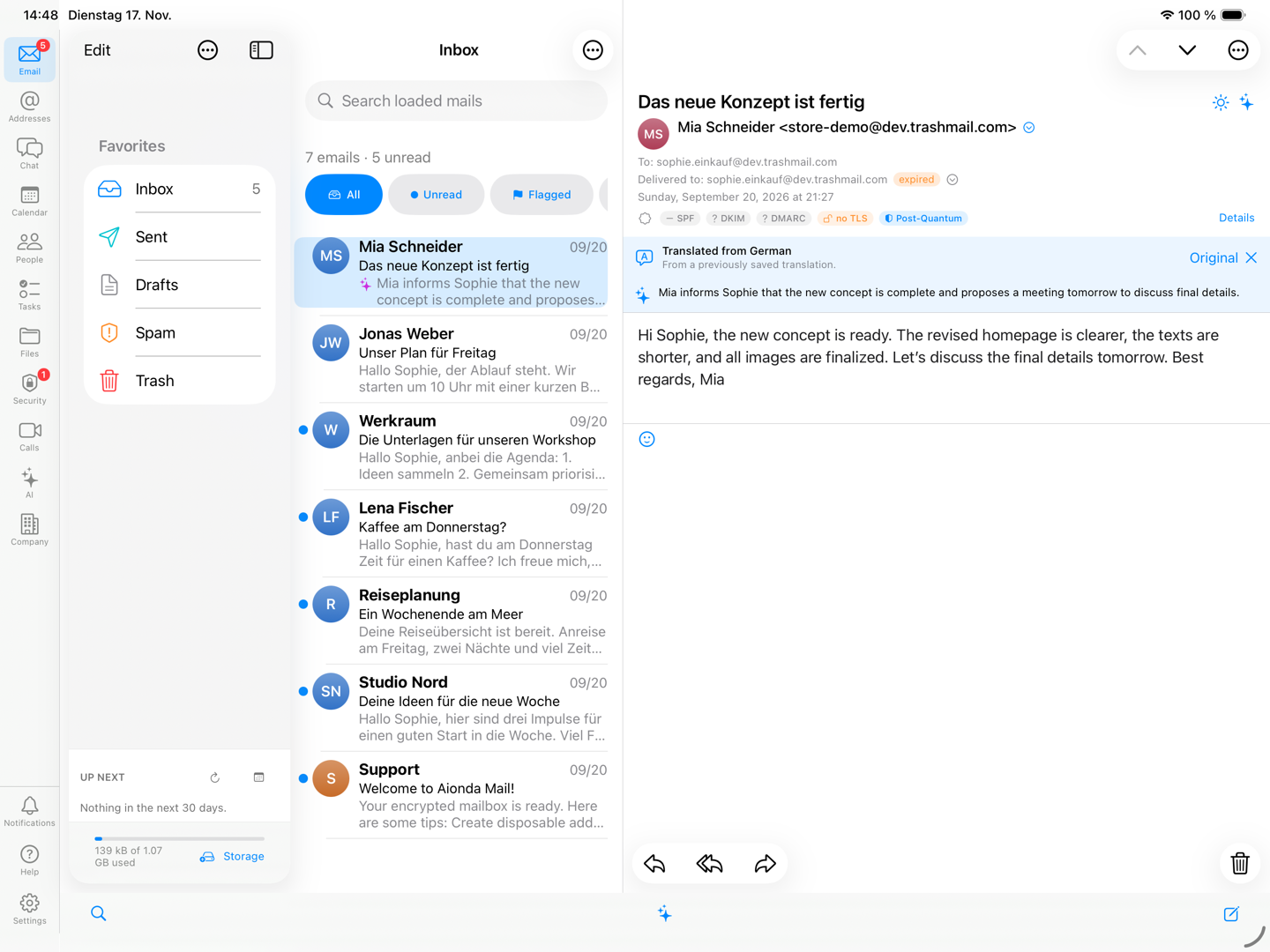
- Switch modules and mailbox folders in the sidebar.
- Browse the message list without losing your place.
- Read the selected message beside the list; this example includes an English AI summary and translation.
Select the screenshot to open the full-size image.
Android: touch-friendly mail
Search your inbox, use its filters and switch modules from the bottom navigation. The New Message button opens the composer.
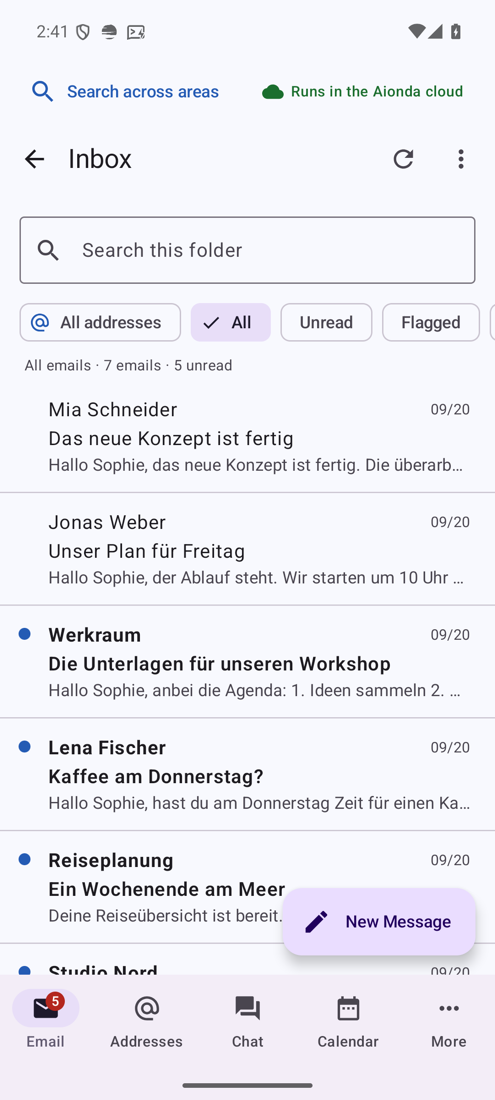
- Search and filter the inbox.
- Compose a new message.
- Switch between Email, Addresses, Chat, Calendar and More. The real test messages shown here are in German; the app interface is English.
Select the screenshot to open the full-size image.
Windows: development preview
In development, not yet released. This real screenshot previews the native Windows workspace. Its appearance and available features can change before release. Use the Web app on Windows in the meantime.
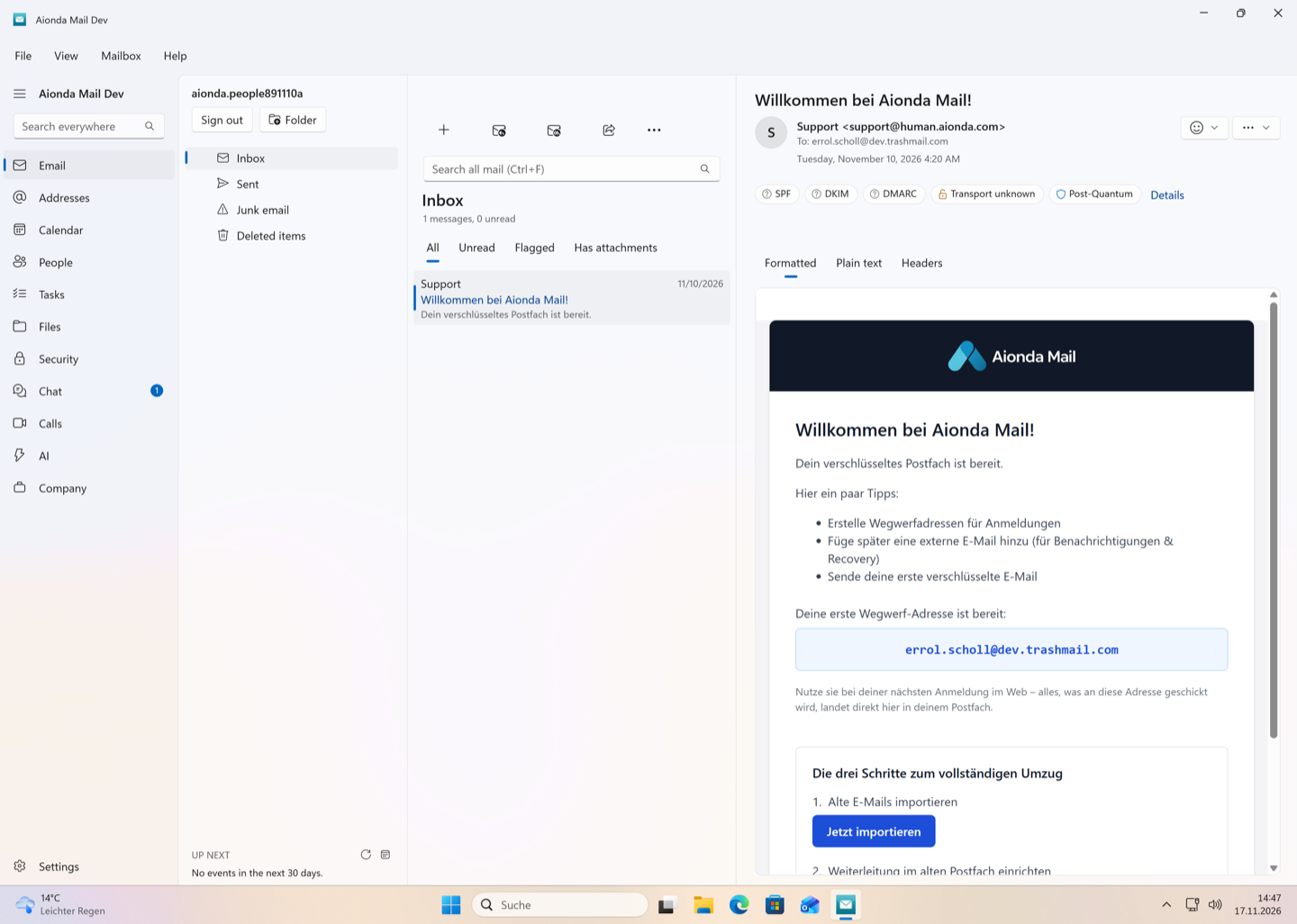
- Native Windows navigation.
- Mailbox folders and message list.
- Read an HTML email inside the native application. This screenshot shows a development build, not a released Windows app.
Select the screenshot to open the full-size image.
Available native apps
| Platform | Where to get it |
|---|---|
| iPhone (iOS) | Aionda Mail on the App Store. |
| iPad (iPadOS) | The same App Store listing, with the iPad interface. |
| Mac (macOS) | Aionda Mail on the Mac App Store. |
| Android phones and tablets | Google Play, or Aionda’s own F-Droid repository for the variant without Google services. |
| Windows | The native Windows app is in development and is not presented here as a released download. Use the Web app in the meantime. |
| Linux | Use the Web app in a supported browser. This handbook does not list a released native Linux application. |
Use the official store listing to check the required OS version, device compatibility and availability in your region. Feature availability and menu placement can differ between clients and installed versions; the workflow screenshots elsewhere in this handbook show the Web client unless stated otherwise.
Android without Google services: F-Droid
- Install a compatible F-Droid client if you do not already use one.
- Follow Aionda’s official repository instructions to add its repository. The repository address is
https://aionda.com/fdroid/repo. - Verify the repository fingerprint against the official instructions, refresh the repository, and select Aionda Mail.
- Install updates through the same distribution channel. The F-Droid variant is a separately signed package, not a promise that it can overwrite a Google Play installation.
Use your existing account
Install the app, sign in with your existing Aionda account and follow its mailbox-unlock flow. You do not need to create a second account simply because you are using another device. Keep your recovery material available privately if the setup requires it. Do not send recovery words or keys to support.
Messages and company access belong to the account; locally cached content and some settings depend on the device. Do not assume that every feature described for the Web app is already exposed in exactly the same way by every native client.
Browser access and extensions
The Web app remains available when you prefer not to install an app. The browser add-on is a separate helper for creating addresses on websites; installing it does not install the native email application.