

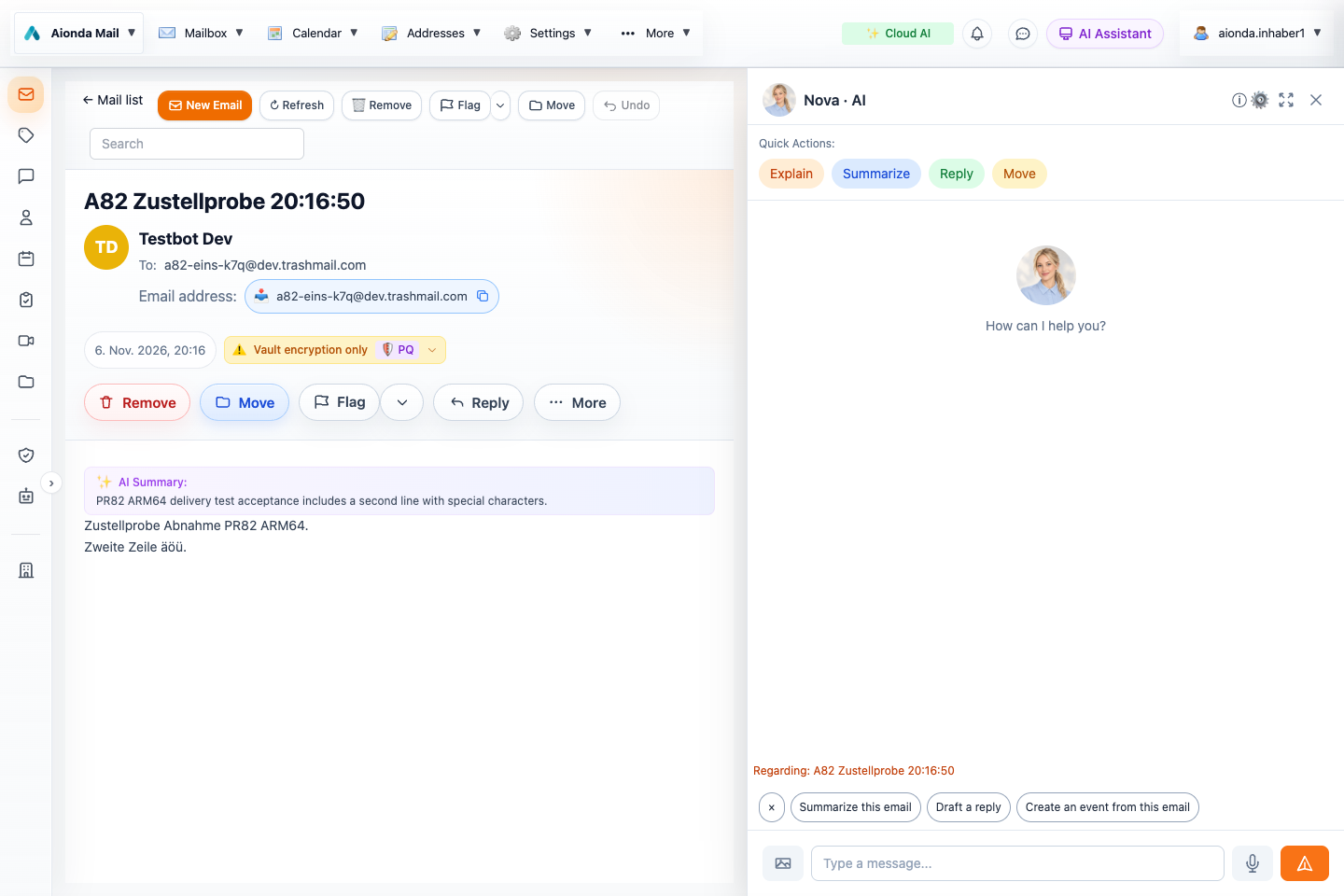
- Quick actions for the open email.
- Review the message summary.
- Enter a request with the intended context.
Select the screenshot to open the full-size image.
For detailed examples, see Composer and AI writing, the opened AI sidebar and all AI chat tools.
Reading and triage
AI can summarize a message, explain it, suggest replies, translate foreign-language text, recommend a folder and identify spam or phishing signals. Automatic reading comments and queued Inbox analysis depend on your settings and an active unlocked client. Folder recommendations do not give the assistant permission to sweep every folder for spam.
Writing
Use the composer’s AI actions to draft text, improve wording, adjust tone, translate or prepare a signature. Where inline completion is offered, accept the suggestion only when it fits. Smart replies are starting points, not evidence that the assistant understood every attachment or prior agreement.
Workspace tools
| Area | Supported kinds of assistance |
|---|---|
| Search, read, list folders, compose or reply, send the open email, discard a draft and delete selected mail. | |
| Contacts | Find contacts, prepare a new contact and save an open form. |
| Calendar | Retrieve events and create appointments. |
| Tasks | Create, update, complete, reopen or delete tasks and manage lists. |
| Drive | List files, read supported content and analyze images. |
| Addresses | Inspect, create, update, enable or disable aliases, inspect delivery logs and diagnose delivery. |
| Rules | List, create, edit, enable, disable or delete mail rules. |
| Research and help | Search the web, fetch a page, inspect DNS or mail-domain configuration, read help and contact support. |
| Meetings | List available video meetings. |
Available tools depend on the assistant, context, permissions and client version. Review action confirmations where shown. Do not assume every tool call is draft-only: sending, deleting or changing a rule can modify real data.
Attachments and voice
Image and PDF analysis can extract useful information, but the analyzed portion may be limited; the Web PDF analysis path reviewed here processes at most the first five pages. Check the original document when completeness matters. Voice input may use a separate speech service. Review which content is being sent before using these capabilities with confidential material.
Good requests
Prefer “Draft a reply confirming Tuesday at 10:00; do not send” over an ambiguous “handle this”. For a rule, specify an exact sender and destination. For research, ask for sources and verify claims against the original source.