

Practical guidance for individuals and businesses. Screenshots use a test company. Red numbered callouts highlight the relevant controls; they are not part of the application.
Choose a topic
Start with Aionda Mail
A practical guide to private email, collaboration and AI-assisted work.
Read chapter →Getting orientedGlossary: email and security terms
Plain-English explanations of the abbreviations and product terms used throughout this handbook.
Read chapter →Getting orientedChoose a native app or the Web app
Explore the native interfaces for iPhone, iPad, Mac and Android, plus a first look at the Windows app in development.
Read chapter →Getting orientedUse browser add-on
Choose Chrome, Firefox or Safari, then follow the illustrated setup. You will need your Aionda username and a Personal Access Token.
Read chapter →Everyday useRead, write and organize email
Keep the Inbox manageable without losing control of where messages go.
Read chapter →Everyday useWrite emails with the composer and AI
Choose the right sender and recipients, write or refine your message, and review the final email before sending.
Read chapter →Everyday useAddresses, aliases and forwarding
Use separate receiving addresses for different purposes without publishing your underlying account address.
Read chapter →Everyday useLogging: delivery history and retained email
Find out what happened to a message, inspect its processing events and recover retained mail before it expires.
Read chapter →Everyday usePersonal contacts and the company directory
One place to find your own contacts and the colleagues you are allowed to see.
Read chapter →Everyday useRules and the email processor
Make repeatable decisions explicit and keep exceptions easy to audit.
Read chapter →Everyday useImport, export and browser integration
Move data deliberately and verify that the destination contains what you expected.
Read chapter →CollaborationDrive and file sharing
Store files in encrypted storage and grant access deliberately.
Read chapter →CollaborationCalendar and invitations
Find a shared meeting time with the Scheduling Assistant, plan appointments and manage invitations.
Read chapter →CollaborationTasks and flagged email
Turn follow-up work into a list that you can review independently of the mailbox.
Read chapter →CollaborationChat and conversations
Discuss work with eligible contacts and keep meeting invitations under control.
Read chapter →CollaborationVideo meetings
Create a meeting, invite the intended participants and control camera, microphone and screen sharing.
Read chapter →BusinessSet up and manage a company
Give people and AI employees the access they need, with clear ownership and oversight.
Read chapter →BusinessVisibility groups: Company and Private
Control who can discover whom without confusing visibility with access to content.
Read chapter →BusinessBusiness archive, integrity and GoBD
Preserve business records and understand exactly what the archive’s hash chain proves.
Read chapter →SecuritySpam and phishing protection
Two layers protect your mailbox: deterministic server-side checks and client-side AI detection of spam and, especially, phishing.
Read chapter →SecuritySecurity basics: passkeys and post-quantum encryption
Understand who can read your data, how you unlock it and why the security of an email depends on its entire route.
Read chapter →SecurityPGP: encrypted email with external correspondents
Protect message content before it reaches a mail server, and distinguish encryption from signing and post-quantum mailbox storage.
Read chapter →AI and integrationsChoose how AI processes your data
Local text processing, cloud processing and external assistants have different data boundaries.
Read chapter →AI and integrationsAI assistance throughout the workspace
Use AI for drafts, triage, research and structured actions, then review the result.
Read chapter →AI and integrationsWork with the AI sidebar
Read emails with contextual AI comments, ask follow-up questions and turn a request into a reviewed draft or an explicit action.
Read chapter →AI and integrationsAI chat: complete tool reference
What the in-app Web assistant can read, prepare or change, with the exact tool names and example requests.
Read chapter →AI and integrationsAI employees and business responsibilities
Treat an AI employee as an assigned business identity with a defined scope, not as an unrestricted assistant.
Read chapter →AI and integrationsConnect an external assistant with MCP
Start in the Web app: click your username at the top right, then choose MCP access. This chapter shows how to reach that window and connect a compatible external assistant.
Read chapter →ReferenceTroubleshooting
An email did not arrive after you entered an address on a website? Follow the whole path: website form → Addresses → select the address → Logging → select the message → Events.
Read chapter →A look inside the Web app
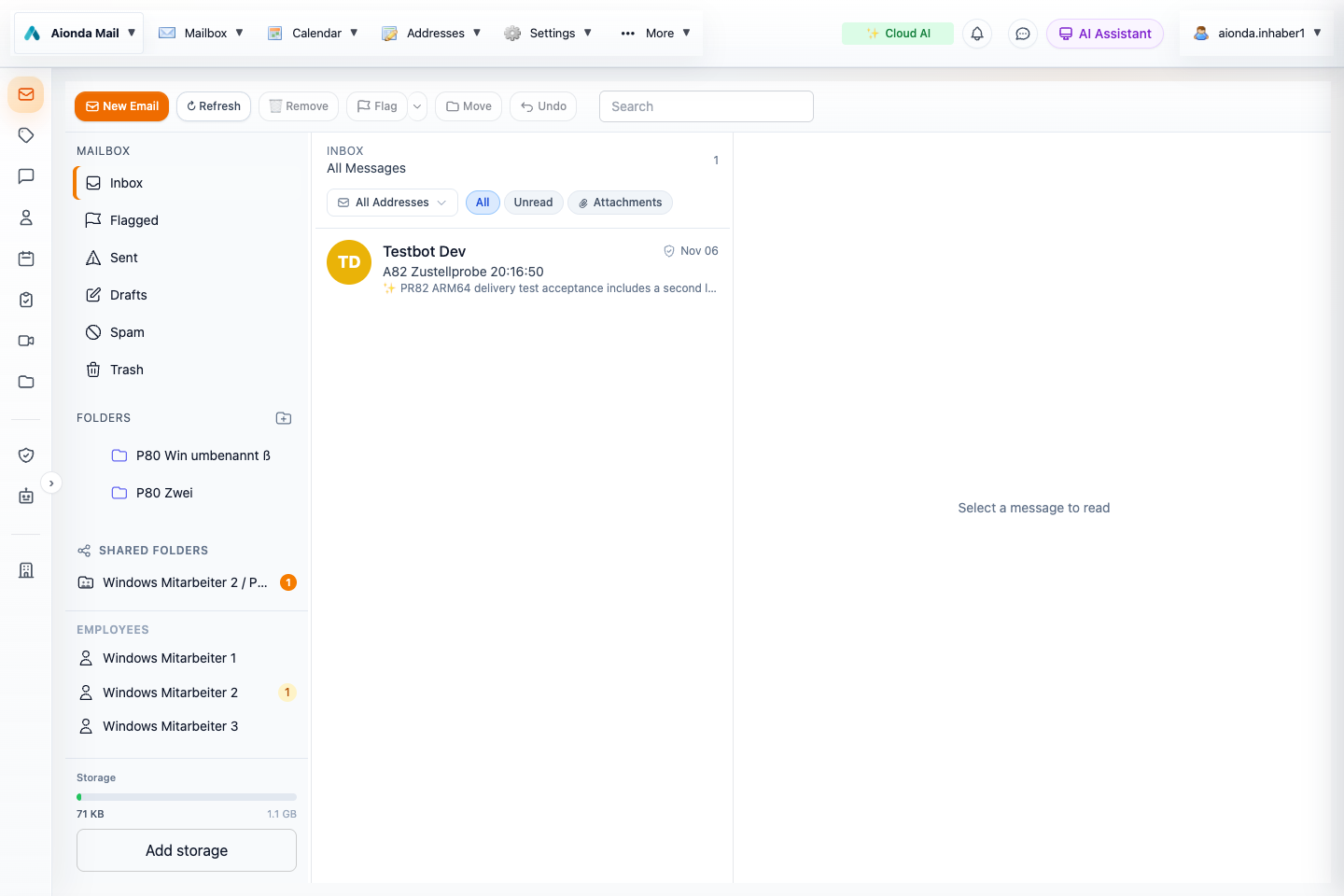
- Mailbox folders.
- Compose a message.
- Search and filter the message list.
Select the screenshot to open the full-size image.