

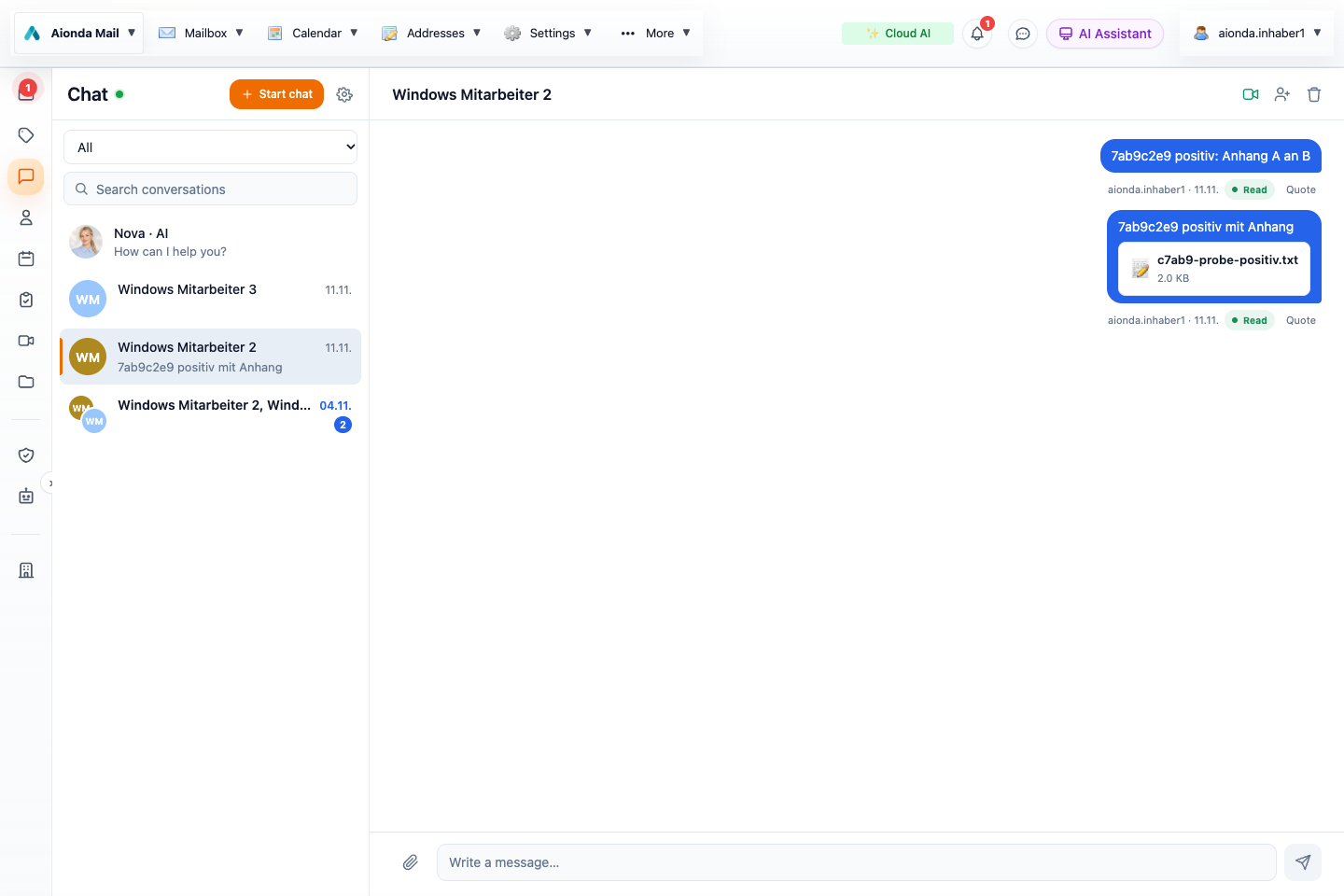
- Find conversations or start a new chat.
- Read messages, attachments and read status.
- Write a message and attach a file. This existing test conversation contains German message text.
Select the screenshot to open the full-size image.
Start a conversation
- Open Chat from the sidebar.
- Choose Start chat. Search for a person and, if available, use the visibility-group filter.
- Select the intended recipient and start the conversation.
- Write your message in the composer and use the attachment control if you want to share a file. Check the recipient before sending.
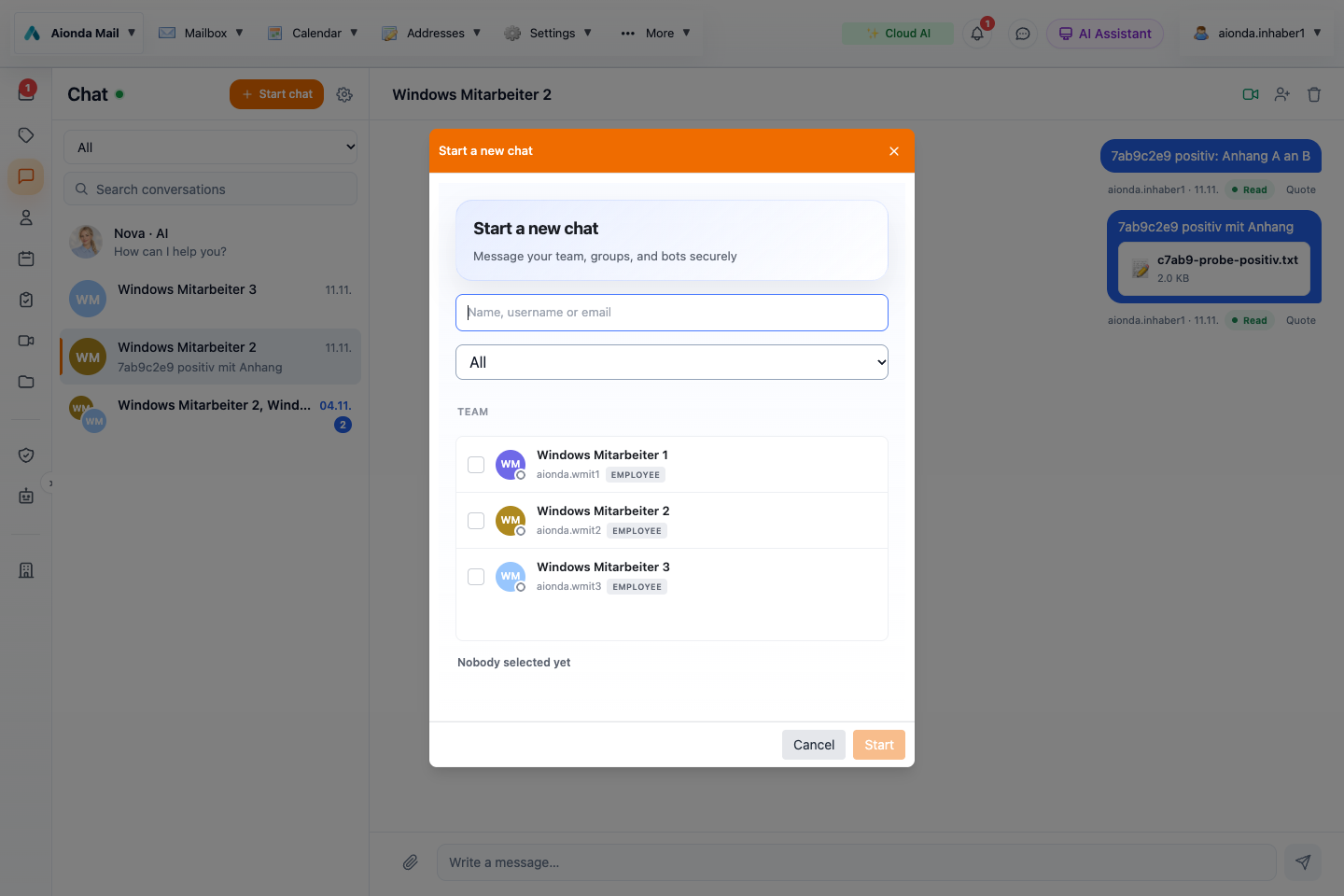
- Search for the recipient by name.
- Filter by visibility group.
- Select the intended person; Start becomes available after selecting a recipient.
Select the screenshot to open the full-size image.
Visibility groups affect which company colleagues can be discovered and selected. An existing conversation is not erased by a later membership change. Personal contacts and resource permissions have separate rules.
Read and respond
The conversation displays messages and attachments. Use Quote to respond with context. The read status shown for a message helps distinguish a message that has been sent from one that has been read. Open the attachment only if you trust its source.
People and AI employees
Check whether the recipient is a person or an AI employee. An AI employee produces generated answers that may need verification. A familiar name or avatar does not make an answer authoritative.
Move to a call
The video-call control appears in the conversation header. For meeting creation, browser permissions and call controls, see Video meetings.
Keep permissions separate
A conversation does not automatically grant access to a mailbox, shared drive or archive. Share the resource explicitly. Do not send recovery words, passwords or MCP credentials in chat.