

One field for everything
Search everywhere at the top of the Web app looks through your email, events, files, contacts, tasks, chat and disposable addresses at the same time. It works in every module, so you do not need to open the mailbox or the calendar first. The search runs in your browser on data that the browser has decrypted with your keys: the server never receives the words you search for.
Type at least two characters. With several words, a result must contain all of them, in any field and in any order. Upper and lower case do not matter.
Quick results while you type
A list opens below the field as soon as you type. It groups the matches by category and shows up to three per category; the category of the module you are working in comes first. Each row shows the title (for an email, its subject), a second line such as the sender, the location of an event or the folder of a file, and the date on the right. Matching words are highlighted.
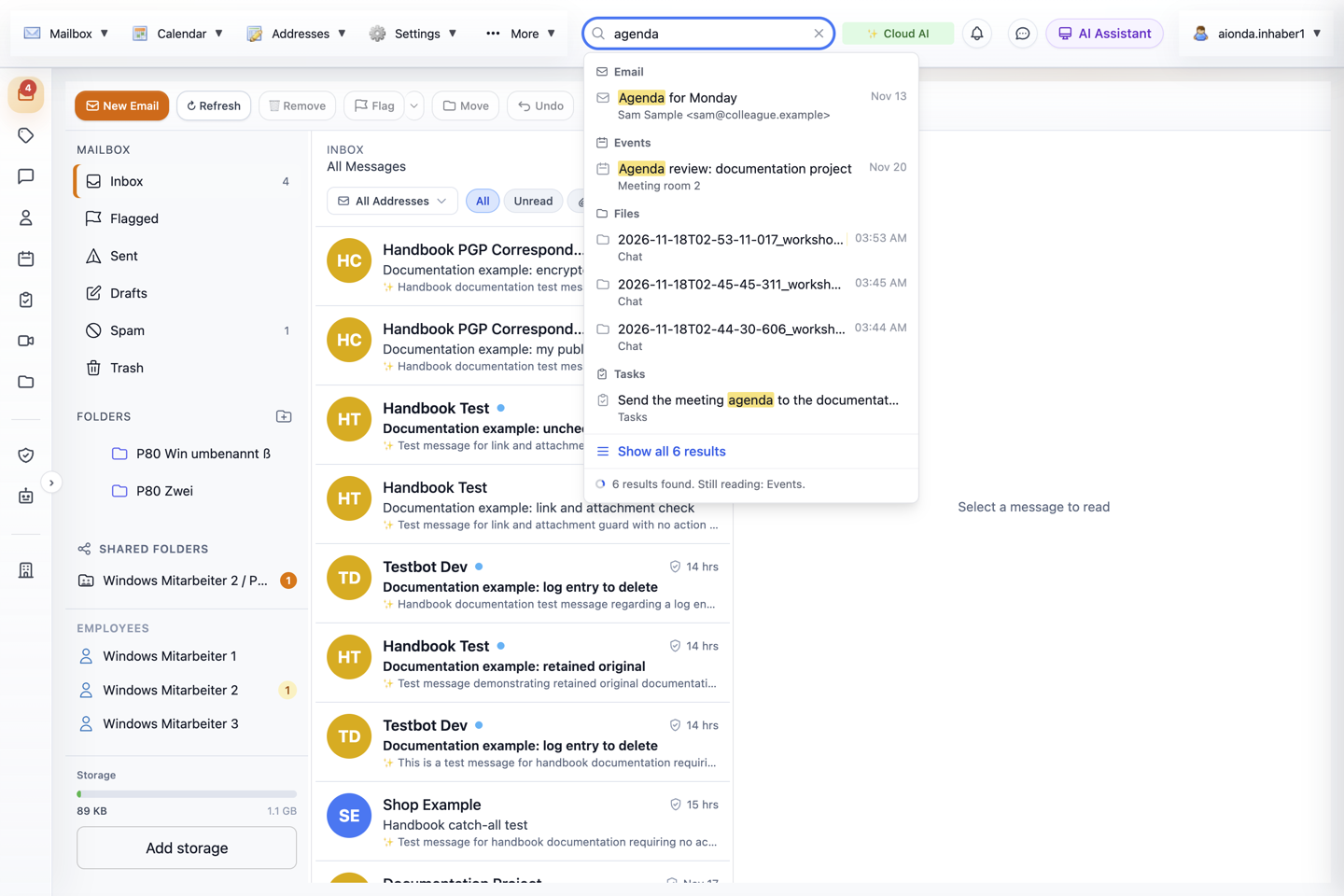
- Search everywhere: type at least two characters.
- Matches grouped by category; the current module comes first.
- Show all n results opens the results page.
- Progress: which categories are still being read.
Select the screenshot to open the full-size image.
The line at the bottom reports progress, for example 6 results found. Still reading: Events. Still reading means that your browser is still loading and decrypting entries of that category. Email is read newest first across all folders, and events from the coming and past year first, so recent items usually appear within a moment. While reading continues, the numbers grow and Show all n results updates. A count you see during reading is therefore an interim figure: the list can say 6 and the results page 9 a few seconds later without anything being wrong. No results. appears only when every category has been read completely.
- ↓ and ↑ select a row; Enter opens the selected item, or the results page if nothing is selected.
- Esc closes the list; × in the field clears the search.
- In windows narrower than 1,440 pixels the field is shown as a magnifier icon in the top bar and widens when you select it. In a phone-sized window, the magnifier in the Mailbox toolbar opens the same search; both fields share the same search text.
The results page
Choose Show all n results or press Enter. The page covers the work area and stays open when you switch modules in the sidebar; the category of the new module then moves to the top. × at the top right, or Esc when the cursor is not in the search field, closes it.
- The header repeats your search and the progress line.
- Search results on the left lists Top results with the total and every category with its number of matches. The sign after the number shows the reading state: ✓ the category has been read completely and its number is final; a small spinning circle means it is still being read; ⚠ means it is locked or could not be read completely.
- Select a category to show only its matches. Top results brings back the overview.
- Each category with matches has its own table. Below the title you see a short excerpt around the matching word when it was found in the text of the item.
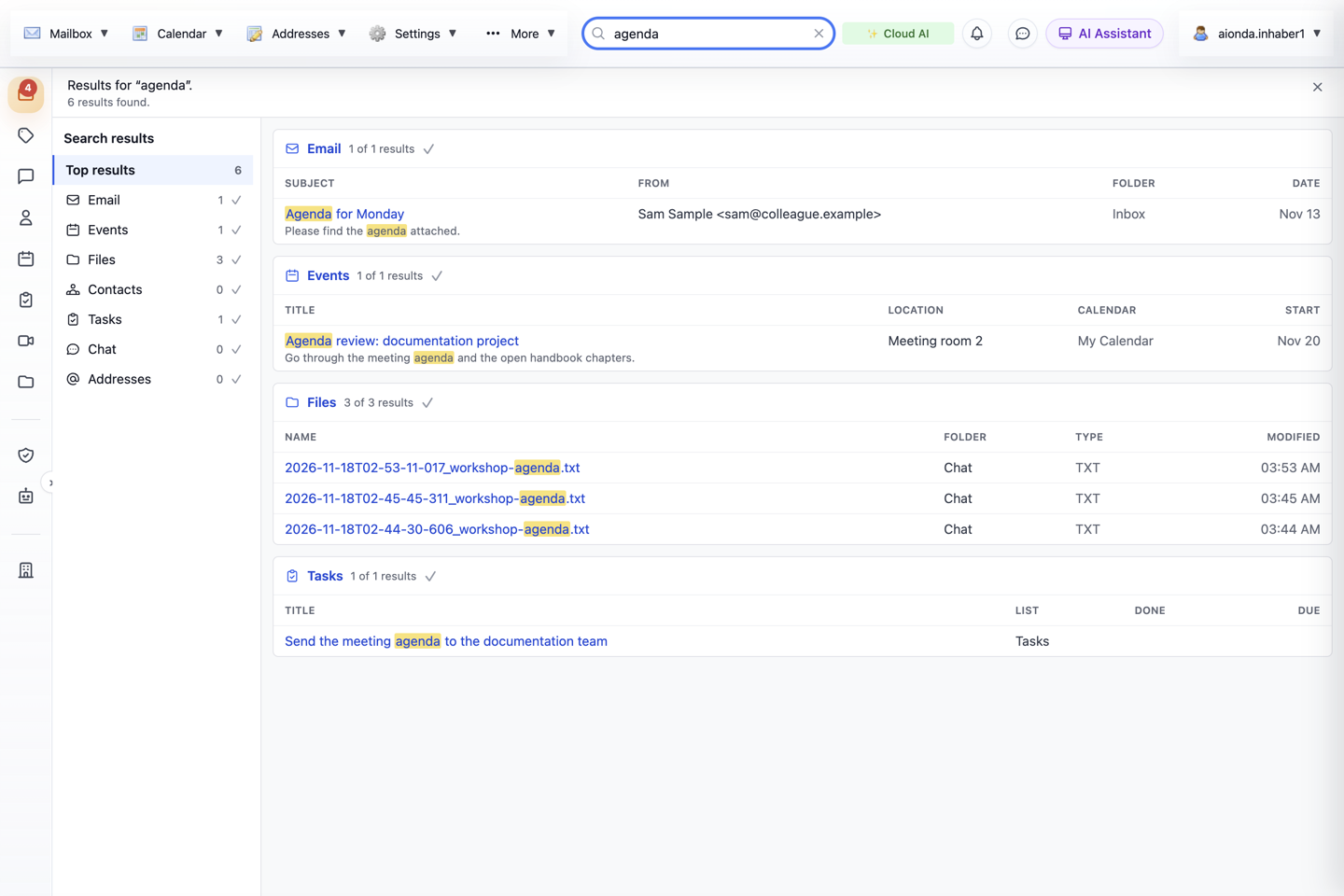
- Your search and the number of results.
- Search results: Top results and every category with its count; ✓ means completely read.
- Category card with n of total results.
- Matching words highlighted, with an excerpt from the text.
- × closes the results page.
Select the screenshot to open the full-size image.
The columns depend on the category:
| Category | Columns |
|---|---|
| Subject, From, Folder, Date | |
| Events | Title, Location, Calendar, Start |
| Files | Name, Folder, Type (file extension, or a folder symbol), Modified |
| Contacts | Name, Email, Company, Modified |
| Tasks | Title, List, Done (✓ for completed tasks), Due (empty when no due date is set) |
| Chat | Message, Conversation, From, Time |
| Addresses | Address, Forwards to (destination or Secure Mailbox), Status (Enabled or Disabled), Created |
More matches in one category
In the overview, every category shows its five best matches, for example 5 of 82 results. Show more switches to that category and lists 50 matches; each further Show more adds 50. Selecting the category name on the left or in the table header does the same.
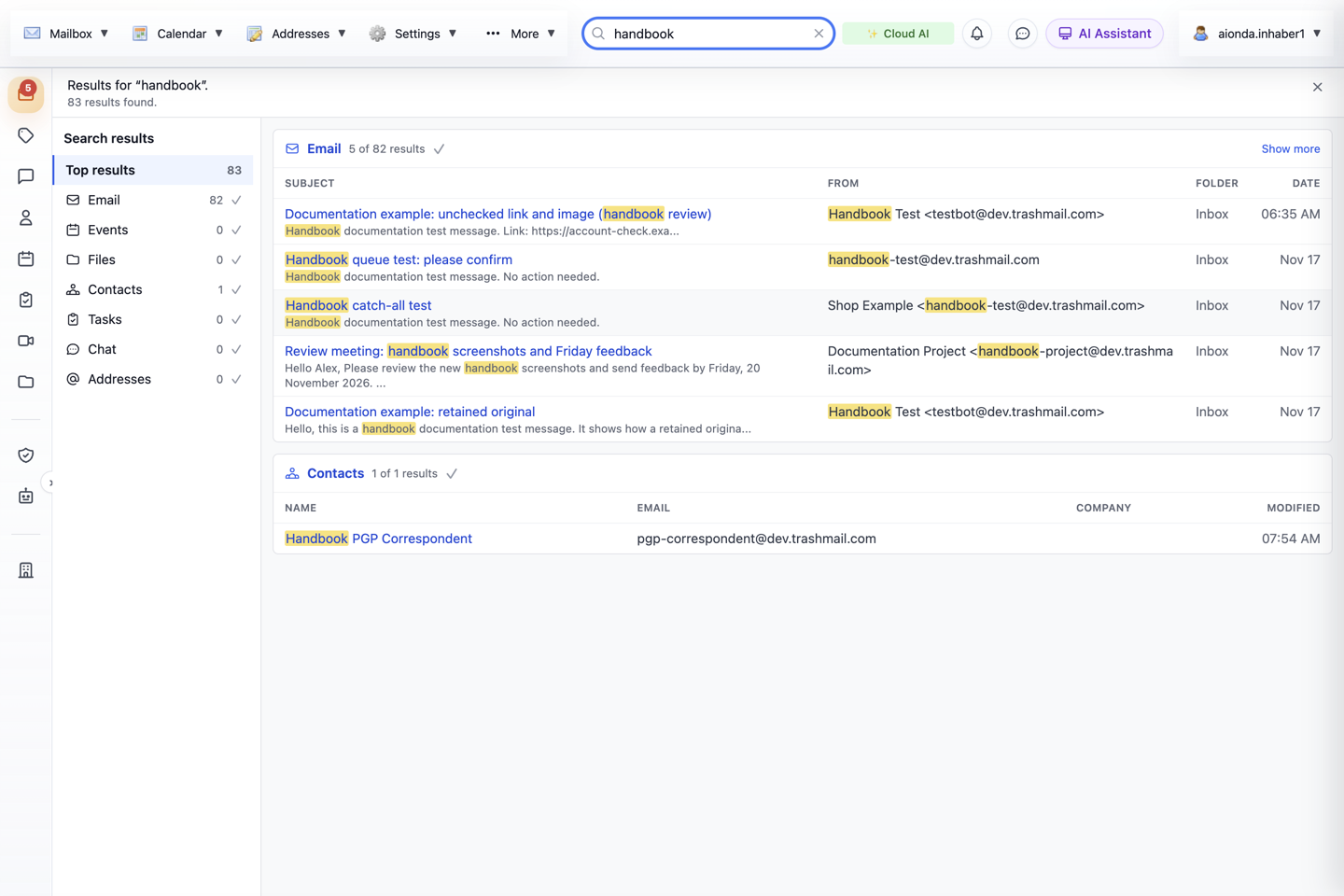
- The overview shows five of 82 email matches.
- Show more lists the category with 50 matches at a time.
- Selecting the category on the left does the same.
- Folder of each email.
Select the screenshot to open the full-size image.
While categories are still being read, the header offers Pause. It stops reading and keeps what has been found so far: the progress line then says Not fully searched: followed by the affected categories, which show ⚠. Resume continues reading.
Open a result
Select a row in the list or a title on the results page. The search closes and the item opens where it lives. An email opens in its folder as if you had selected the folder yourself: the folder is marked in the folder list, the message is selected in the message list and appears in the reading pane, even if it is older than the messages currently loaded. Your search text stays in the field, so you can return to the same results.
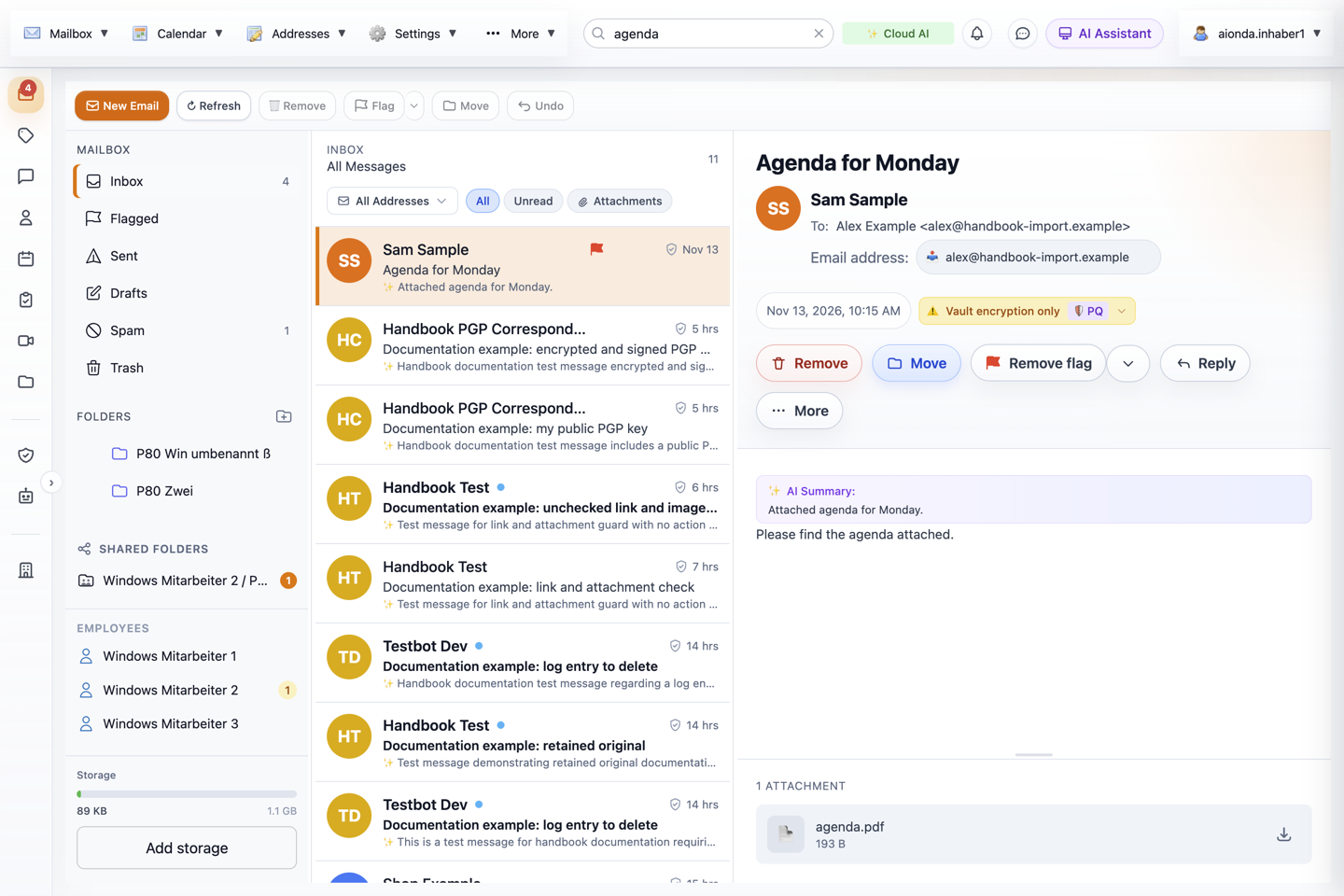
- The email’s folder is marked.
- The message is selected in the list.
- It opens in the reading pane.
Select the screenshot to open the full-size image.
Events open in the calendar, files in Drive, contacts in Contacts, tasks in their list and addresses in Addresses; chat matches open the conversation. For this handbook, opening was checked for emails; the other categories follow the same pattern in the code.
What is searched
| Category | Searched fields |
|---|---|
| Subject, sender, recipients, message text and attachment names in Inbox, Sent, Archive, Spam, Trash and your own folders. All pages of every folder are read, newest first. | |
| Events | Title, location, attendees and description. |
| Files | File and folder names in Drive. The content of files is not searched. |
| Contacts | Name, email addresses, company, phone numbers and notes. |
| Tasks | Title, notes and steps, including completed tasks. |
| Chat | Messages this browser has already loaded and decrypted, plus conversation names and participants. |
| Addresses | The disposable address, its forwarding destination, description and website. |
The name of the list, calendar or Drive folder is shown next to a match, but a word that appears only in that name does not produce a match. Searching for a list name therefore does not return every task in that list.
Results are ranked by where the words were found: title or subject first, then people (sender, recipients, attendees), then location, then text, then attachment names. Among equally good matches, newer items come first.
Limits and messages
- Not searched: your Drafts folder, folders that other people share with you, and the mailboxes of employees or AI employees. Use the folder itself for these.
- Locked mailbox: while your Secure Mailbox is locked, the encrypted categories show ⚠ with Mailbox locked – unlock to search. Addresses remain searchable. Locking clears everything the search has read; after unlocking it reads again.
- Supervision mode: when you view an employee mailbox under supervision, the search shows Not searchable in supervision mode instead of reading someone else’s data in the background.
- Chat: there is no server-side chat history to search. Older messages are found only after the conversation has been opened and loaded in this browser.
- n emails could not be decrypted and are missing from the results appears on the Email card when single messages cannot be decrypted with the keys of your mailbox. The search continues with all other messages instead of dropping a whole folder. Such messages usually cannot be read in the mailbox either. If you need one of them, find it by date in its folder; if it does not open, contact support.
- What the search has read stays in the memory of this browser tab only; nothing is written to the server. Reloading the page starts reading again.
Global search and the AI assistant
The AI assistant has its own email search tool with tighter limits: it loads the newest 100 messages per folder. If the assistant does not find a message, use the global search, open the message and then ask about “this email”. See Which emails the assistant can find.
Native apps
This chapter describes the Web app. The native apps have their own search; it was not checked for this chapter.